Defender Vulnerability Management shows a CVE on your devices, but there is no patch from the vendor. Or the CVE belongs to a 32-bit component while your server is 64-bit. With a security recommendation exception you exclude a whole recommendation, and then the exception applies to all CVEs that belong to that recommendation.
In December 2025 Microsoft made CVE exceptions generally available. In this blog post you read how to exclude one CVE, which reasons you can choose and what changes in the Microsoft Defender portal afterwards.
Updated on 27 October 2026: the step to choose the scope (the whole organization or specific device groups) is now included, and a statement about the impact score that Microsoft does not make was removed.
A whole recommendation, with all CVEs linked to it
The recommendation’s details page
CVE exception
One specific CVE
The CVE’s details page
CVE exceptions came into preview in October 2025 and have been generally available since December 2025. With that step an extra reason was added, False positive, and the vulnerabilities API returns the status of an exception. Microsoft describes it in the list of new features of Defender for Endpoint.
What do you need?
Defender Vulnerability Management, which exceptions are part of. You have it with at least Defender for Endpoint Plan 2, which contains the core capabilities, or with the standalone version; there is also an add-on for Plan 2. Devices with Defender for Endpoint Plan 1 show no vulnerabilities or security recommendations; for customers with Plan 1 or Microsoft 365 E3, Microsoft recommends the standalone version.
A role with the permission Exception handling (level Manage) in Microsoft Defender unified RBAC, under Security posture – Posture management. There, Microsoft describes that permission as creating security recommendation exceptions and managing active exceptions; the guide for exceptions names the “exceptions handling permission” as a prerequisite, without distinguishing CVE exceptions.
For a global exception: the Security Administrator role or a custom role with the same permission. Global Administrator can do it too, but Microsoft recommends using the role with the fewest privileges.
💡 You create and manage exceptions only in the Microsoft Defender portal, not through the public API.
Where do you find the CVE?
Vulnerability Management is in the Microsoft Defender portal under Exposure management:
The list of CVEs: Exposure management > Vulnerability management > Vulnerabilities.
The overview of exceptions: Exposure management > Vulnerability management > Remediation.
Updated in October 2026: Microsoft Learn still calls these paths “relevant for Preview customers” and gives Vulnerability management > Weaknesses and Remediation for existing customers. In October 2026 they are in the portal as shown above, without a preview option. If you still see Weaknesses, the old paths apply in your tenant.
Create a CVE exception
In the Microsoft Defender portal, open Exposure management > Vulnerability management > Vulnerabilities.
Select the CVE you want to exclude.
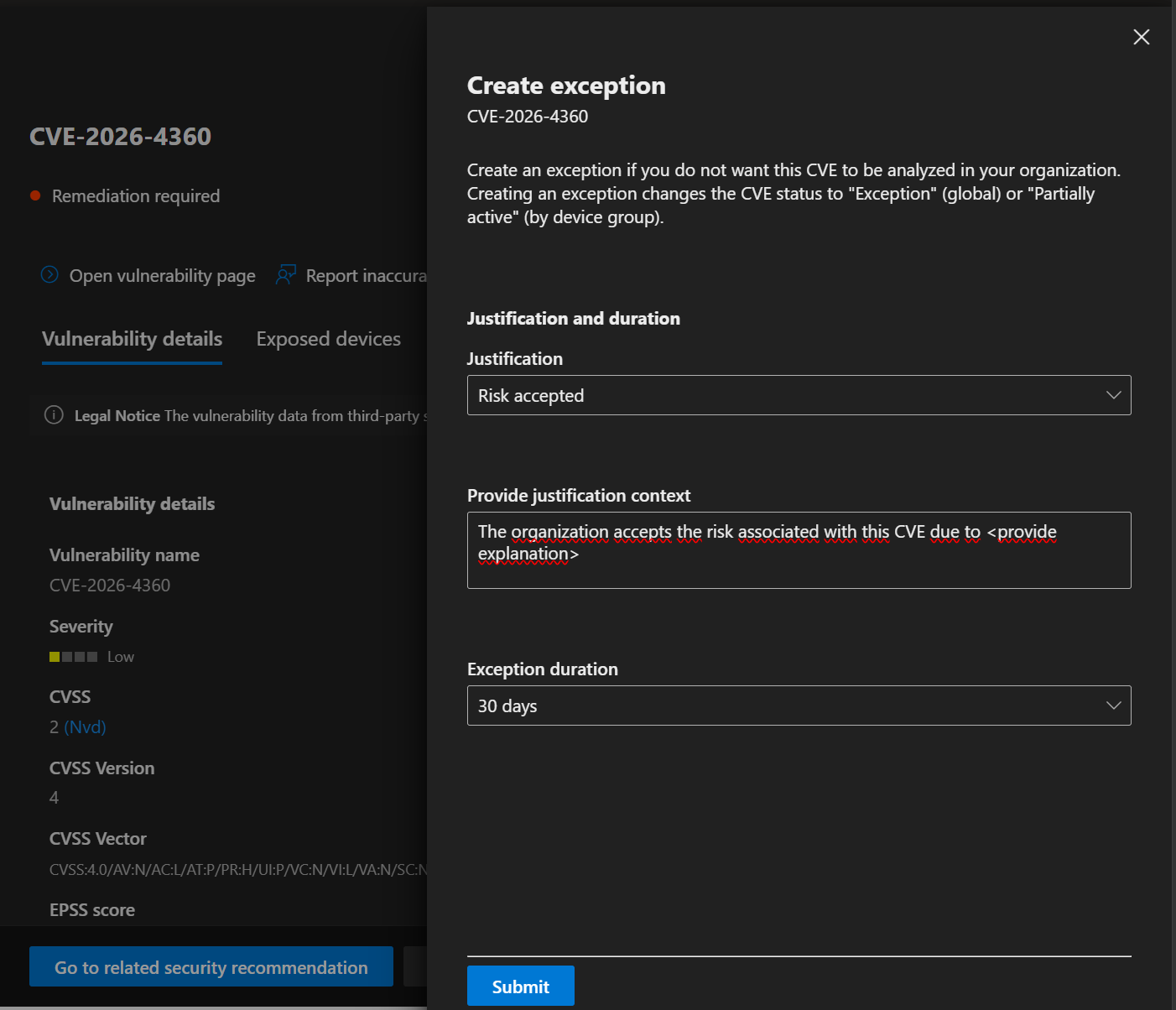
On the CVE’s details page, click Exception options at the bottom right.
Under Justification, choose a reason and explain it under Provide justification context.
Under Exception duration, choose the duration of the exception.
Choose the scope: the whole organization (global exception) or specific device groups. Device groups you create later are not included.
Click Submit (Microsoft Learn calls the button Confirm and apply). A confirmation appears.
💡 You cannot extend the duration of an exception afterwards. If it expires and is still needed, you create a new exception. So choose the duration carefully in advance.
Third party control: a product from another vendor already mitigates the risk.
Alternate mitigation: an internal measure already mitigates the risk.
Risk accepted: the risk is low or the fix is too expensive.
Planned remediation (grace): the fix is planned but not yet carried out or approved.
CVE with no patch: the vendor has no patch. Only for CVE exceptions.
False positive: the CVE does not apply to your environment. Only for CVE exceptions.
Microsoft itself states that Defender Vulnerability Management does not distinguish between 32-bit and 64-bit when mapping CVEs to devices, which can lead to false positives. That is a situation in which False positive fits, by this post’s own reading. On the same page you can also report it to Microsoft with Report inaccuracy.
What changes in the portal?
It can take up to an hour before the exception affects the number of exposed devices and the exposure score. During that time the CVE can still appear in reports and dashboards. After that, the following applies:
The CVE no longer appears in the inventory lists, for the scope you chose.
Threat analytics and alerts related to the CVE are suppressed.
The CVE’s details page shows that there is an exception.
The exposure score and secure score can change.
View and cancel exceptions
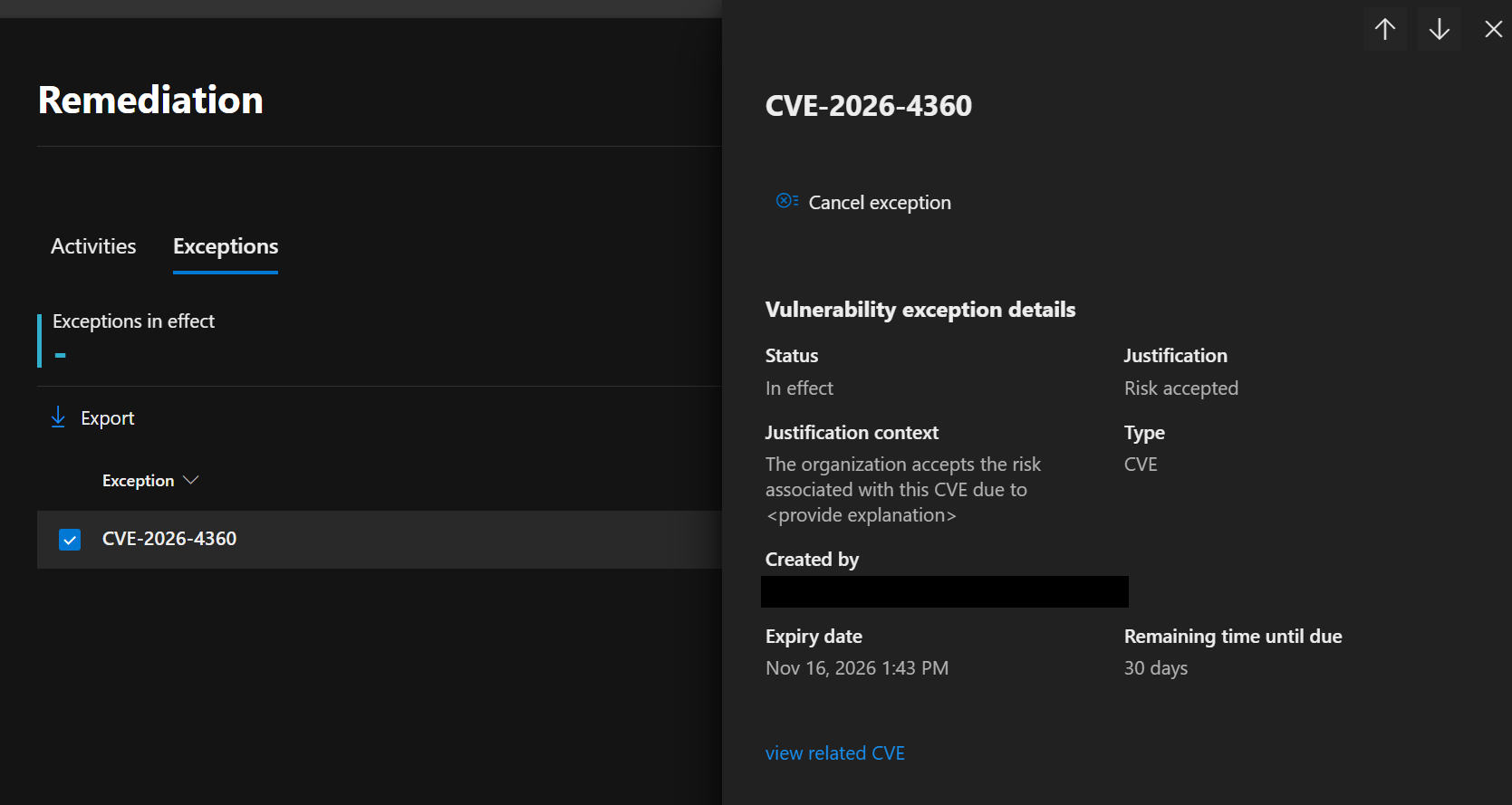
All exceptions, for CVEs and for recommendations, are on the Exceptions tab of the Remediation page. You can filter by reason, kind and status.
Open Exposure management > Vulnerability management > Remediation and go to the Exceptions tab.
Select an exception. A pane with the details opens.
Click Cancel exception to cancel the exception.
After canceling, you can create a new exception right away.
If you retrieve vulnerabilities with the Get all vulnerabilities API, the response contains the field status. The possible values are RemediationRequired, NoActionRequired, UnderException and PartialException.
Wrapping up
With a CVE exception you take one CVE out of your analysis without hiding the rest of the recommendation. Choose a reason that is accurate and choose the duration deliberately, because extending is not possible.
Onboard iPhones and iPads into Microsoft Defender for Endpoint with zero-touch through Intune, and use the risk level in compliance and app protection.