All blog posts

11 min read

Securing iOS with Defender for Endpoint: zero-touch onboarding

Contents
  1. What is Mobile Threat Defense with Defender for Endpoint?
  2. What do you need?
  3. Connect Defender for Endpoint to Intune
  4. Add the Microsoft Defender app to Intune
  5. Set up zero-touch onboarding for unsupervised devices
  6. Set up the Control Filter for supervised devices
  7. Configure the app’s features
  8. Create a compliance policy based on the risk
  9. Use the risk in an App Protection Policy
  10. User experience
  11. Wrapping up

An employee opens a link from a text message on their iPhone, or connects to an open Wi-Fi network on the train. That device has access to business mail and files, but without extra protection you as an administrator do not know whether it is at risk.

Microsoft Defender for Endpoint is Microsoft’s Mobile Threat Defense (MTD) solution for iOS and Android, and it works together with Microsoft Intune. In this blog post you read how to onboard iOS devices into Defender for Endpoint with as little manual work by the user as possible, both supervised and unsupervised with Device Enrollment, and how to use a device’s risk level in compliance and App Protection Policies.

What is Mobile Threat Defense with Defender for Endpoint?

Defender for Endpoint on iOS and Android protects mobile devices with, among other things:

  • Web Protection: anti-phishing and custom indicators for URLs and domains. IP indicators are not supported on iOS.
  • Network Protection: detection of unsafe Wi-Fi networks and suspicious certificates.
  • Jailbreak Detection: a jailbroken device produces a high-risk alert in the Microsoft Defender portal.
  • Vulnerability management: vulnerabilities in iOS and, on enrolled devices, in apps.

On an unsupervised device, Web Protection uses a local VPN. It does not send traffic outside the device. On a supervised device, a Control Filter profile can take over that role, so no VPN is needed.

What do you need?

  • A Defender for Endpoint license per user and a subscription that includes Microsoft Intune.
  • iOS devices that are enrolled in Intune. Zero-touch onboarding works on supervised devices (Automated Device Enrollment or Apple Configurator) and on unsupervised devices with Device Enrollment.
  • In Intune: the roles Application Manager and Policy and Profile Manager for the app and the profiles, and Endpoint Security Manager for the connection with Defender for Endpoint.
  • To turn on the connection in the Defender portal: the Security Administrator role in Microsoft Entra ID, or in Defender for Endpoint the permission Manage security settings in Windows Security Center.
  • To view the devices in the Defender portal: in Microsoft Defender XDR Unified RBAC the permission Security operations \ Security data \ Security data basics (read), or View data if your organization still uses the older RBAC of Defender for Endpoint.
  • For the Conditional Access policy: permissions equal to the Conditional Access Administrator role.

💡 Note: zero-touch onboarding does not work on devices that are enrolled without user affinity, such as shared devices, nor with Apple User Enrollment.

Connect Defender for Endpoint to Intune

You set up the connection between the two services once per tenant. See Configure Microsoft Defender for Endpoint with Intune.
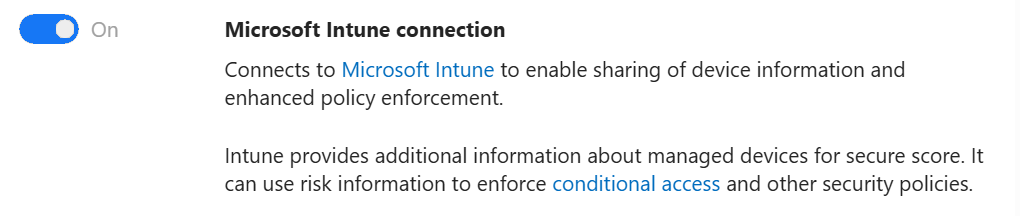
  1. Open the Microsoft Defender portal and navigate to Settings > Endpoints > General > Advanced features.
  2. Set Microsoft Intune connection to On and click Save preferences.

The setting ‘Microsoft Intune connection’ is set to ‘On’.

  1. Open the Microsoft Intune admin center and navigate to Endpoint security > Microsoft Defender for Endpoint. Within 15 minutes, Connection status shows Enabled.
  2. Under Compliance policy evaluation, set the option Connect iOS/iPadOS devices to Defender for Endpoint to On.
  3. Under App protection policy evaluation, set the same option for iOS/iPadOS to On if you also want to use the risk in App Protection Policies.
  4. Click Save.

Add the Microsoft Defender app to Intune

Skip this step if you already deploy the app as a volume-purchased app (VPP).

  1. Navigate to Apps > All apps and click Create.
  2. Choose iOS/iPadOS as the platform and iOS store app as the app type.
  3. Click Search the App Store, search for “Defender” and select Microsoft Defender: Security.
  4. Set Minimum operating system to iOS 17.0, as Microsoft specifies in the installation guide.
  5. Assign the app as Required to your users, so that Intune installs it. With Available for enrolled devices, the user has to install the app from the Company Portal themselves (assigning apps in Intune). Click Create.

Set up zero-touch onboarding for unsupervised devices

With zero-touch onboarding, Intune puts a VPN profile on the device that makes Defender for Endpoint activate in the background. For supervised devices, use the next section.

  1. Navigate to Devices > Configuration, tab Policies, and click Create > New policy.
  2. Choose Platform iOS/iPadOS, Profile type Templates and Template name VPN. Give the profile a name, for example “iOS – Defender for Endpoint – Zero Touch”.
  3. Set Connection type to Custom VPN.
  4. Under Base VPN, fill in:
    • Connection name: “Microsoft Defender for Endpoint”
    • VPN server address: 127.0.0.1
    • Authentication method: Username and password
    • Split tunneling: Disable
    • VPN identifier: com.microsoft.scmx
  5. Under the key-value pairs, add the key SilentOnboard with the value True. If users may turn the VPN on and off in the app, also add EnableVPNToggleInApp with True.
  6. Under Automatic VPN, set the option Type of automatic VPN to On-demand VPN. Under the on-demand rules, click Add, choose Establish VPN for I want to do the following and All domains for I want to restrict to.
  7. Set Block users from disabling automatic VPN to Yes if users may not turn off the VPN in Settings.
  8. Assign the profile to your users and click Create.

The screenshot below is an example configuration. It contains settings that the steps above do not recommend, such as the extra key SingleSignOn and Block users from disabling automatic VPN set to Not configured. The on-demand rule is still called Connect VPN in it; Microsoft now calls that action Establish VPN.
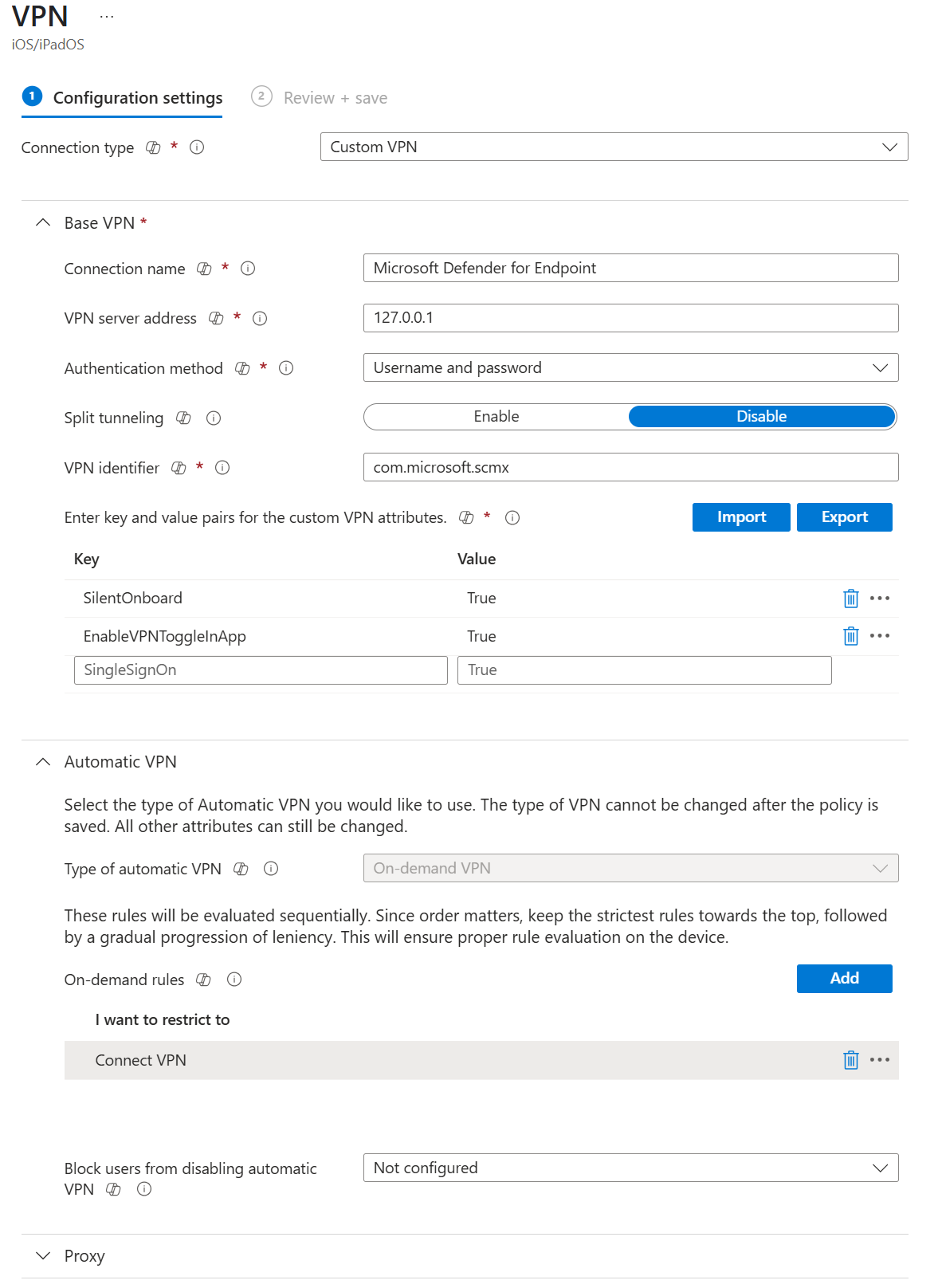
The VPN profile for iOS/iPadOS in Intune: connection type ‘Custom VPN’, server address 127.0.0.1, VPN identifier com.microsoft.scmx and the keys ‘SilentOnboard’ and ‘EnableVPNToggleInApp’ with the value ‘True’.

As soon as the device has the profile, Defender for Endpoint is activated in the background. Microsoft mentions up to five minutes for that step.

Set up the Control Filter for supervised devices

On a supervised device, a Control Filter profile provides Web Protection without a local VPN. For that you need two parts: an app configuration policy and a custom profile.

Let the app know that the device is supervised

  1. Navigate to Apps > Configuration and click Create > Managed devices.
  2. Choose Platform iOS/iPadOS and under Targeted app select the app Microsoft Defender: Security.
  3. Under Configuration settings format, choose Use configuration designer and add:
    • Configuration key: issupervised
    • Value type: String
    • Configuration value: {{issupervised}}
  4. Assign the policy to All Devices, as Microsoft recommends, and click Create.

The configuration key ‘issupervised’ of type ‘String’ with the value ‘{{issupervised}}’.

Deploy the Control Filter profile

  1. Download the profile Zero touch (Silent) Control Filter through the link in Microsoft’s installation guide. This variant onboards the user without any action.
  2. Navigate to Devices > Configuration, tab Policies, and click Create > New policy.
  3. Choose Platform iOS/iPadOS, Profile type Templates and Template name Custom. Give the profile a name, for example “iOS Supervised – Defender – Control Filter”.
  4. Under Configuration profile file, select the downloaded .mobileconfig file.
  5. Assign the profile to all your managed iOS devices, as Microsoft recommends, and click Create.

💡 Note: the Control Filter profile does not work together with Always-On VPN. In addition, iOS allows only one device-wide VPN to be active at a time. So if your organization uses Always-On VPN, you have to choose.

Configure the app’s features

With an app configuration policy for managed devices, you control the settings of Defender for Endpoint. Use the same steps as above (Apps > Configuration > Create > Managed devices, app Microsoft Defender: Security) and add the keys you need. A few examples from the documentation of the iOS features:

Key Type What it does
WebProtection String false turns Web Protection off; it is on by default
DefenderNetworkProtectionEnable String false turns Network Protection off; it is on by default
DefenderOpenNetworkDetection Integer Detection of open Wi-Fi: 0 off, 1 audit, 2 on (default)
DefenderDeviceTag String Sets a device tag that appears in the Defender portal. From Intune only one tag works, the user has to open the app, and it can take up to 18 hours before the tag is visible
DefenderFeedbackData Boolean false removes the option to send feedback to Microsoft from the app

The screenshot below is an example configuration with more keys and other values than the table recommends. For example, DefenderOpenNetworkDetection is set to 1 (audit), and SuppressOSUpdateNotification has had no effect since the end of July 2026, because Defender no longer sends those notifications.

So do not copy the screenshot one to one: DefenderExcludeURLInReport, for example, is set as String there, while Microsoft prescribes Boolean.
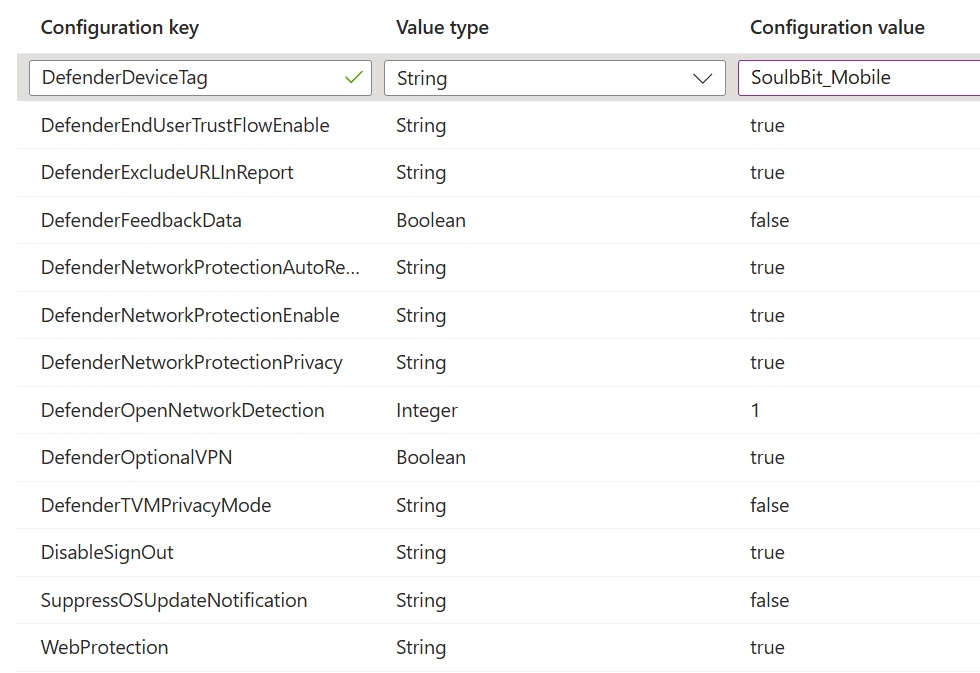
The configuration keys of the app configuration policy for Defender, including ‘DefenderNetworkProtectionEnable’ and ‘WebProtection’.

On supervised devices with the Control Filter, WebProtection has no effect. There you turn Web Protection off by removing the Control Filter profile.

Create a compliance policy based on the risk

With a compliance policy you mark a device with too much risk as noncompliant. Access is only blocked when a Conditional Access policy requires a compliant device. Microsoft recommends putting such a policy in Report-only first and reviewing the results before you turn it on. How to set up that policy is described in Stronger security with Conditional Access: require MDM and compliance.

  1. Navigate to Devices > Compliance, tab Policies, and click Create policy.
  2. Choose Platform iOS/iPadOS and give the policy a name, for example “iOS – Defender risk”.
  3. On Compliance settings, open the section Microsoft Defender for Endpoint and set Require the device to be at or under the machine risk score. The options are Clear (strictest), Low, Medium and High. Microsoft recommends Low for most organizations.
  4. Under Device Health, optionally also set Jailbroken devices to Block. Microsoft recommends that as an extra layer next to the app’s jailbreak detection.
  5. Under Actions for noncompliance, choose what happens. Mark device noncompliant is set to zero days by default; with a later schedule you give the user a grace period. You can also add Send email to end user or Add device to retire list. The latter only puts the device on a list; an administrator has to start the retire themselves.
  6. Assign the policy to the same groups as the profiles above and click Create.

Under Device Health there is also Require the device to be at or under the Device Threat Level. That setting uses the verdict of a connected Mobile Threat Defense service. Microsoft’s Intune guide for Defender for Endpoint uses the machine risk score setting; this blog post follows that guide.

Use the risk in an App Protection Policy

An App Protection Policy works on devices that are and are not enrolled in Intune. So you can use the risk from Defender for Endpoint for devices that are not enrolled in Intune as well. Such devices get Defender through a separate procedure, Defender for Endpoint on iOS with MAM; the steps for zero-touch, the VPN profile and the Control Filter do not apply there. The user registers the device in Microsoft Authenticator with the same work or school account as in the Defender app, and installs Defender from the App Store themselves when a protected app asks for it.

  1. Navigate to Apps > Protection and click Create policy > iOS/iPadOS.
  2. On Apps, choose which apps the policy protects.
  3. On Conditional launch, add the setting Max allowed device threat level, choose a level (Secured, Low, Medium or High) and choose Block access or Wipe data as the action.
  4. Assign the policy to groups of users and click Create.

The device condition ‘Max allowed device threat level’ with the value ‘Low’ and the action ‘Block access’.

User experience

On an unsupervised device with zero-touch, Intune installs the app and the VPN profile, and the user gets a notification from Microsoft Defender. According to Microsoft, the user sometimes still has to sign in to the app, for example after a password change or an MFA prompt. Afterwards, Settings > General > VPN shows a VPN named Microsoft Defender for Endpoint.

On a supervised device with the Zero touch Control Filter, no VPN profile is put on the device. Privacy settings in the app are not visible to the user there; you set them as the administrator.

Network Protection only starts after the user has opened the Defender app once, also with zero-touch.

To check whether Web Protection works, open https://smartscreentestratings2.net on an onboarded device. Microsoft uses that test page to show that a phishing site is blocked. Explain to users what a notification from Defender means, so that they do not dismiss it.

📚 Further reading: Deploy Microsoft Defender for Endpoint on iOS with Microsoft Intune.

Wrapping up

With the connection between Intune and Defender for Endpoint and a VPN or Control Filter profile, you onboard iOS devices largely without manual work by the user; sometimes the user still has to sign in to the app, and for Network Protection the app must have been opened once. A compliance policy on the machine risk score marks devices with too much risk, and a Conditional Access policy that requires a compliant device then blocks access. Choose the right method per type of device: zero-touch with VPN for unsupervised devices with Device Enrollment, the Control Filter for supervised ones. Shared devices and Apple User Enrollment fall outside zero-touch.

Sources

  1. Assign Apps to Groups in Microsoft Intune, accessed on 17 October 2026
  2. Deploy Microsoft Defender for Endpoint on iOS with Microsoft Intune, accessed on 13 October 2026
  3. Configure Microsoft Defender for Endpoint on iOS features, accessed on 13 October 2026
  4. Microsoft Defender for Endpoint - Mobile Threat Defense, accessed on 13 October 2026
  5. Configure Advanced Features in Microsoft Defender for Endpoint, accessed on 13 October 2026
  6. Configure Microsoft Defender for Endpoint with Intune and onboard devices, accessed on 13 October 2026
  7. Enable Mobile Threat Defense connector in Microsoft Intune, accessed on 13 October 2026
  8. iOS/iPadOS device compliance settings in Microsoft Intune, accessed on 13 October 2026
  9. Configure compliance policies with actions for noncompliance in Microsoft Intune, accessed on 13 October 2026
  10. Add App Configuration Policies for Managed iOS/iPadOS Devices, accessed on 13 October 2026
  11. Create and Deploy App Protection Policies, accessed on 13 October 2026
  12. Configure Microsoft Defender for Endpoint on iOS using MAM, accessed on 13 October 2026

All blog posts
