WMIC disappears from Windows 11: replace it with PowerShell
Since August and September 2026, WMIC is gone from Windows 11, version 24H2 and later. How to find scripts that use it and replace them.
- Topic: Windows
- Platform: Windows

7 min readNew

If you wanted to see which processes start on a Windows device, which network connections they make and which drivers are loaded, you could use Sysmon from Sysinternals. That is a separate download, whose files you deploy and update yourself.
Since February 2026, Sysmon is an optional feature in Windows 11 itself. In this blog post you read what built-in Sysmon does, how to turn it on and apply a configuration, and how to check that events are coming in.
Updated in October 2026: this blog post described the optional preview update of February 2026. According to Microsoft, changes from a preview update then go into the regular updates, although no regular update for 24H2 or 25H2 names Sysmon; the section “From preview to regular update” and the requirements have been adjusted accordingly.
System Monitor (Sysmon) is a service with a driver that records system activity in the Windows Event Log. Once turned on, Sysmon stays active after a restart. According to Microsoft, it records, among other things:
Important to know: Sysmon only records. It does not analyze the events, raises no alerts and blocks nothing. To do something with them, you forward the events to Windows Event Collection or to a SIEM. Microsoft also names Microsoft Defender for Endpoint and other EDR platforms as products that can use Sysmon events.
The difference from the Sysinternals version is mainly in management. Built-in Sysmon is updated through the normal quality updates of Windows: improvements appear first in an optional preview update and then in the next regular update, and security fixes come with the monthly security update. That also happens when Sysmon is turned off.
💡 Note: the displayed event text of built-in Sysmon is translated into the device’s language, the XML data of the event is not. If a script or SIEM connector reads the displayed text, you may need to adjust it for devices in a language other than English.
Built-in Sysmon appeared on 24 February 2026 in the optional preview update KB5077241 for Windows 11 24H2 and 25H2. The table of update channels in those release notes contains the standard sentence that the changes will appear in the next security update, and the security update of 10 March 2026 (KB5079473) states that it contains the non-security changes of the February preview. Microsoft does not name Sysmon separately there; the documentation says that Sysmon has been a built-in optional feature of Windows 11 “since February 2026”.
For Windows 11 26H1, the version for new devices from early 2026, Sysmon is in the preview update KB5079489 of 26 March 2026. Windows 11 26H2, available since 29 September 2026, names Sysmon in What’s new in Windows 11, version 26H2 as a feature added to Windows since 25H2.
The servicing cycle is visible by now: the preview update KB5124010 of 22 September 2026 fixes three issues in Sysmon, including incorrect events with ID 25 (Process Tampering) for smss.exe, and the security update KB5127648 of 13 October 2026 includes them for 24H2, 25H2 and 26H2.
You can turn on built-in Sysmon only once the Sysinternals version is off the device. A Windows update leaves a separate installation alone; built-in Sysmon then stays off.
Open PowerShell as administrator.
Run the following command to look for a Sysmon service:
# Lists any installed Sysmon service
Get-Service sysmon*
If the command returns a result, remove the separate Sysmon first.
Built-in Sysmon is off by default. Turning it on takes two steps: first the optional feature, then the Sysmon service.
In the interface, choose Settings > System > Optional features > More Windows features and select Sysmon. From the command line it works like this:
Open PowerShell as administrator.
Install the optional feature with the following command:
# Installs the built-in Sysmon optional feature
Enable-WindowsOptionalFeature -Online -FeatureName Sysmon
Install the service with the default configuration:
# Installs the Sysmon service and driver with the default configuration
sysmon -i
Step 2 can also be done with DISM: Dism /Online /Enable-Feature /FeatureName:Sysmon. According to Microsoft, installing and removing the service does not require a restart.
The configuration file determines which event types Sysmon records and which it filters out. In the documentation, Microsoft points to a few well-known configurations from the community as a starting point, and gives a minimal example itself.
Put the configuration file in a folder of your choice, for example “C:\Sysmon\sysmonconfig.xml”.
Open PowerShell as administrator.
Apply the configuration to an installed Sysmon:
# Applies a configuration file to the installed Sysmon service
sysmon -c C:\Sysmon\sysmonconfig.xml
If you haven’t installed the service yet, you combine installation and configuration with sysmon -i C:\Sysmon\sysmonconfig.xml. A configuration takes effect immediately, without a restart. sysmon -c without a file shows the active configuration, sysmon -c -- resets it to the default settings.
💡 Note: a configuration that is not well tuned can produce a lot of events. Microsoft recommends testing a configuration before you deploy it widely.
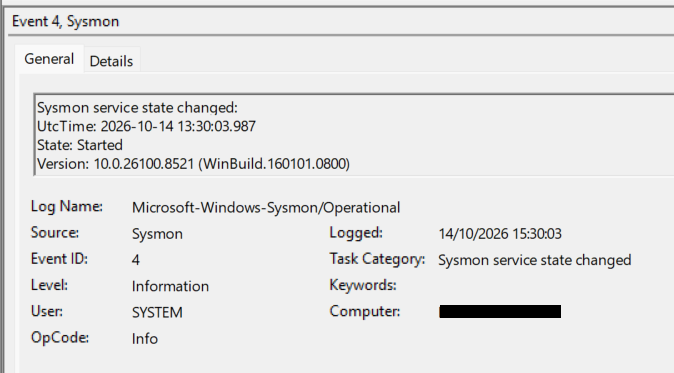
Because built-in Sysmon comes with the Windows updates, Microsoft recommends including it in your normal testing process: try preview updates first on test or pilot devices, review the events and the behavior, and adjust the configuration if needed before you deploy the update widely. If Sysmon is on, the configuration is kept during an update and, according to Microsoft, no restart is needed.
Microsoft describes turning it on per device. How to deploy this centrally, for example through Intune, is still not in the Sysmon documentation in October 2026; Microsoft only points to the general page about optional Windows features. That is outside the scope of this blog post.
According to Microsoft, Sysmon blocks nothing and raises no alerts; it only writes events to the Event Log. What the user notices, Microsoft does not describe; a poorly tuned configuration does produce a lot of events.
With built-in Sysmon you no longer have to download and update the Sysmon files yourself; the Windows updates do that. Turning it on, configuring it and removing a separate Sysmon you still do per device. Choose a configuration that fits what you want to see, test it on a few devices and make sure someone looks at the events.
📚 All command-line options are in Sysmon in Windows, the steps in Enable and configure Sysmon in Windows and the meaning of each event in Sysmon events.