Staged rollout of apps and policies with Intune deployments
Roll out a Win32 app or a Settings catalog or endpoint security policy for Windows in stages, in rings, with fixed wait times.
- Topic: Intune
- Platform: Windows

6 min readNew

Many organizations want administrators not to work with full rights on their own laptop all day, but get stuck on how to arrange that. Windows 11 has Administrator protection for this. On 13 October 2026 Microsoft announced that the feature turns on by default with the October 2026 security update for organizations that use the Windows security baselines: the baselines from the Security Compliance Toolkit, and not if you configured the policy differently yourself. The feature only takes effect after the device restarts.
In this blog post you read how to decide where Administrator protection belongs: what the feature does, what the baseline changes, on which devices you better leave it off, and how to turn it on or off with a settings catalog policy in Intune.
Administrator protection is a security feature of Windows 11 that lets an administrator work without admin rights by default. Only when an action needs those rights, such as installing software or changing a system setting, does Windows ask the user for approval with Windows Hello.
After that confirmation, Windows uses a hidden, system-managed account with its own profile to create a separate admin token. Only the process that asked for it gets that token, and it disappears as soon as that process ends. Automatic elevation no longer exists: the user must approve every admin action. That makes it harder for malware to silently obtain admin rights; Microsoft does, however, not call the feature a formal security boundary.
For 24H2 and 25H2, the feature became available with KB5120998, the non-security update of August 2026. According to the Windows message center, it has been generally available since the September 2026 preview update, with management settings for organizations. By default it is off.
The security baselines for Windows 11, versions 24H2, 25H2 and 26H2, set two settings:
| Setting | Value in the baseline |
|---|---|
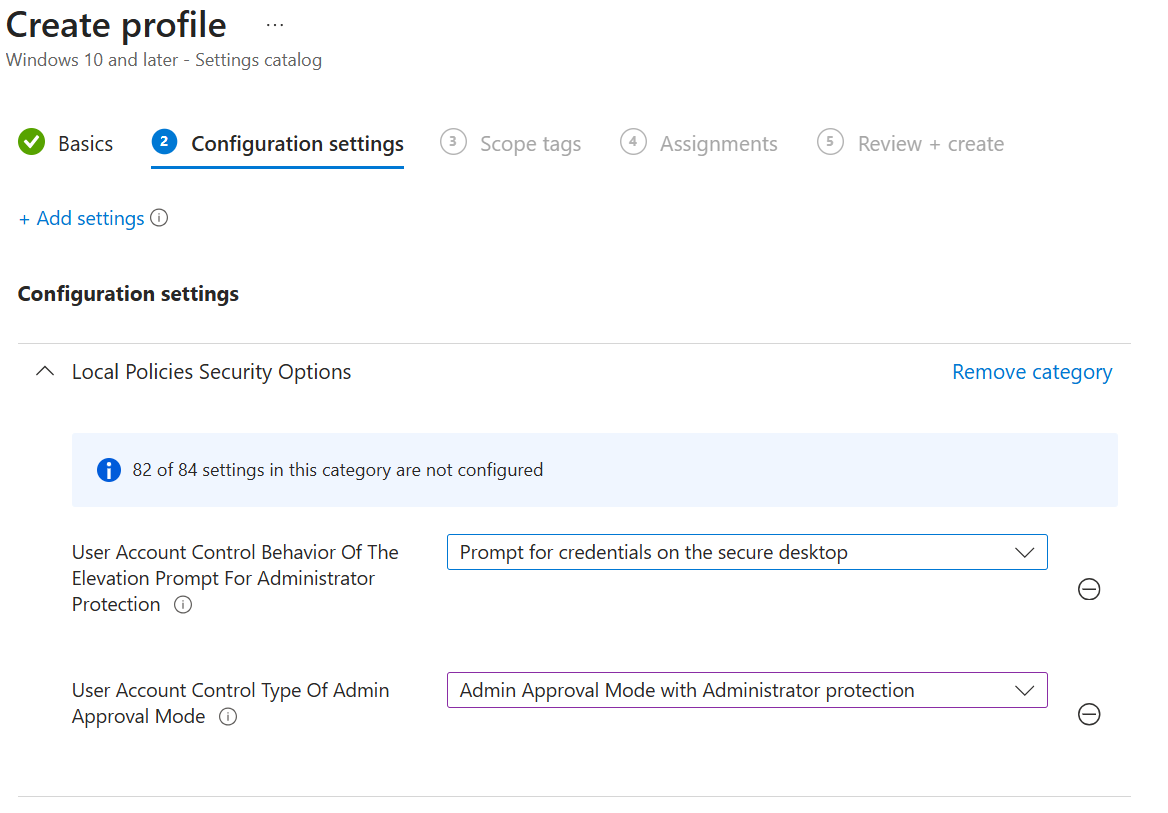
| User Account Control: Configure type of Admin Approval Mode | Admin Approval Mode with Administrator protection |
| User Account Control: Behavior of the elevation prompt for administrators running with Administrator protection | Prompt for credentials on the secure desktop |
For 26H2, an updated v2 package appeared in the Microsoft Security Compliance Toolkit for this. According to the known issues of 26H2, this concerns the baselines from that toolkit, and the new default does not apply if your organization configured the policy differently.
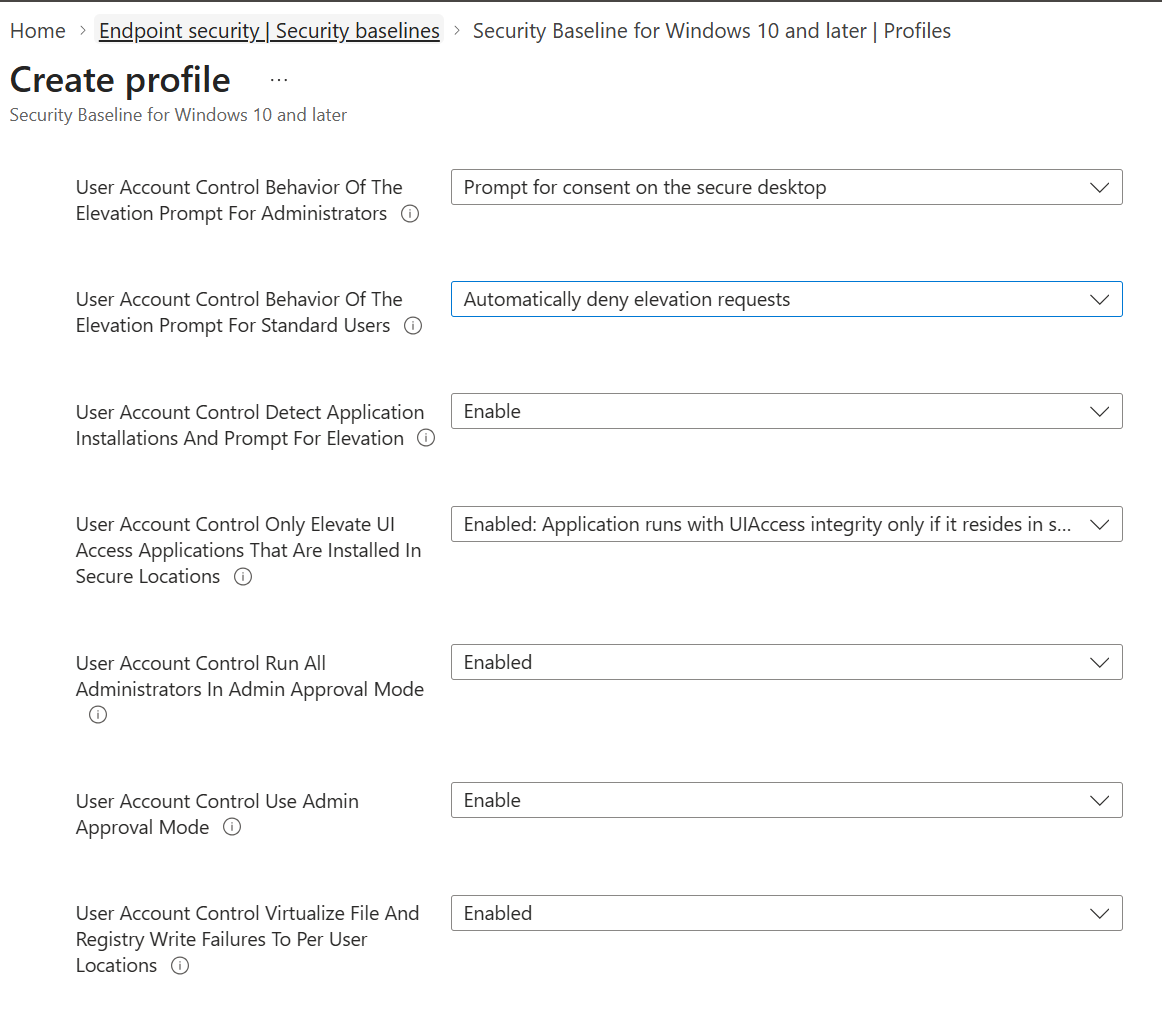
💡 Note: the Intune reference of the security baseline for Windows 26H2 does not list these two settings (as of 28 October 2026). If you manage with Intune, you can set them yourself with a settings catalog policy, as shown below.
Microsoft names, among others, these situations in which you should not enable Administrator protection:
Roaming profiles and backup admins are not supported either.
There is also a known issue: after the September 2026 preview update (KB5124010), users without admin rights might be unable to make a Remote Desktop connection to a device that serves as a Remote Desktop host and has Administrator protection turned on. The connection can fail with error 0xC000000D. Microsoft resolved this on 28 October 2026 with KB5127936 and later updates. So install the latest update on Remote Desktop hosts where you want to use Administrator protection.
Open the Microsoft Intune admin center.
Navigate to Devices > Manage devices > Configuration > Create > New policy.
For Platform, choose Windows 10 and later, and for Profile type, choose Settings catalog. Click Create.
On the Basics tab, give the policy a name, for example “Windows – Administrator protection – on”.
In Configuration settings, click Add settings and open the category Local Policies Security Options.
Add these two settings:
Skip Scope tags or choose a tag, and on Assignments assign the policy to the group with the devices that get the feature.
Check everything on Review + create and click Create.
The setting only takes effect after the device restarts. Plan for that, for example together with the monthly updates.
Want more control over when each group gets the feature? Assign the policy to a test group first and only then widen it.
Create a second settings catalog policy with the same steps, but set User Account Control Type Of Admin Approval Mode to Legacy Admin Approval Mode. Assign it to the group with the devices from the list above. A restart is needed here too. For Windows 365 and Azure Virtual Desktop, Microsoft also recommends having users work there as standard users. For Cloud PCs, Microsoft additionally recommends an assignment filter that excludes them from every Intune policy that turns the feature on.
The Intune reference of the 26H2 baseline does not list these settings, so it appears that no conflict with the baseline arises within Intune. That baseline does set User Account Control Behavior Of The Elevation Prompt For Administrators to Prompt for consent on the secure desktop; once Administrator protection is on, the prompt setting for Administrator protection takes precedence over it. If you deploy the baseline from the Security Compliance Toolkit with Group Policy, adjust that baseline for the devices that must not get the feature. Preferably do not set this setting with both Group Policy and Intune: only for settings under the control of MDMWinsOverGP does Microsoft let Intune win; otherwise there is no guarantee which of the two wins.
With the baseline setting, an administrator gets a prompt on the secure desktop for every action that needs admin rights, in which they sign in, for example with Windows Hello. The administrator also notices a few differences:
Administrator protection turns an administrator account into an account that only gets admin rights when the user explicitly approves it. If you use the security baselines from the Security Compliance Toolkit, the feature turns on by default with the October update, unless you configured the policy differently yourself, and takes effect after a restart. Decide per group of devices whether you want that, and record that choice in the tool you use to deploy the baseline: adjust the baseline in Group Policy, or manage the setting in Intune if you don’t take the baseline from the toolkit.