You usually do not want to send a new version of a Win32 app or a changed Settings catalog policy to all Windows devices at once. Until now, a staged rollout meant: assigning groups one by one and keeping track yourself of when the next one is due.
In the week of 21 September 2026, Microsoft released a feature for this in Intune: deployment plans and deployments. In this blog post you read how to create a deployment plan with rings, how to roll out an app or policy with it, and what happens to the assignments while the rings become active.
What are deployment plans and deployments?
Deployments roll out an app or policy, which Microsoft calls the payload, in stages through rings. A ring is a group assignment that becomes active on a set date and time. The feature consists of two parts:
Deployment plan. A reusable template with the rings, the groups per ring, any assignment filters, exclusion groups and the wait time between the rings. A plan does not contain an app or policy itself.
Deployment. The execution: one payload that is rolled out according to a plan, or according to rings you set up yourself one time.
💡 Microsoft still marks the feature as public preview: you can use it in production and Microsoft supports it, but for now only for Windows, and it can still change.
Deployments currently support Windows 10 and later, with these payloads:
Kind
Supported payload
Policy
Endpoint security policies, Settings catalog
App
Windows app (Win32), Enterprise App Catalog app
For Win32 and Enterprise App Catalog apps, only the intent Required works; Available and Uninstall are not supported. For Enterprise App Catalog apps, Update with supersedence does work, but Automatically update does not.
What do you need?
An app or policy of a supported type that already exists in Intune.
For a deployment plan: the Create permission for the Deployment plan category, included among others in the built-in roles Application Manager, Endpoint Security Manager and Policy and Profile Manager.
For a deployment: the Read and Assign permissions on the category of the payload, so Device configurations for a policy and Mobile apps for an app.
Per ring at least one Microsoft Entra security group, or the virtual group All users or All devices.
Microsoft does not name a separate license requirement on the pages about deployments.
Create a deployment plan
In the Microsoft Intune admin center, go to Devices > Manage devices > Deployments.
On the Deployment plans page, select Create plan.
On Basics, enter a Name and Description, such as “Windows – three rings”, and click Next.
On Deployment schedule, choose a Platform. The platform determines which assignment filters are available; with All platforms the plan can be used for every platform and every payload.
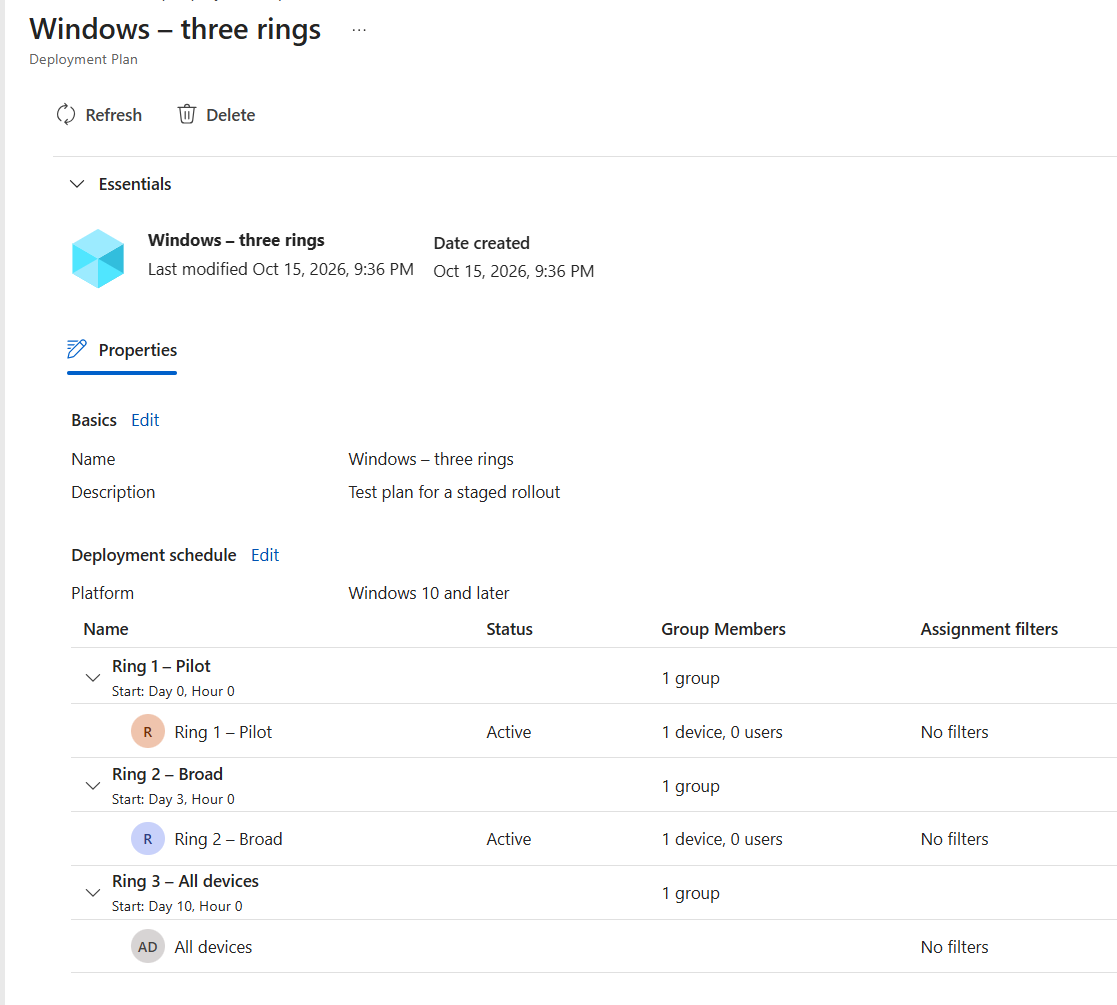
Click Add rings and give the first ring a name. The first ring always starts on day 0, hour 0; you cannot change that field. You set the start date and time of the first ring only in the deployment.
Click Add ring for each next ring and set Wait time to next ring, in days and hours. That wait time is at least one hour.
Click Save and add the groups per ring, optionally with assignment filters.
Add Exclude groups if needed. They apply to all rings.
Optionally add scope tags and save the plan through Review + create.
💡 If you put All users or All devices in a ring, that automatically becomes the last ring. You cannot combine those virtual groups with Microsoft Entra security groups in the same ring.
In the overview of the plan you see per ring when it starts relative to the first ring, such as Day 3, Hour 0. Below is an example with three rings, the last of which uses All devices.
You can change a plan later. Deployments already created with the plan do not change because of that.
Roll out an app or policy with a deployment
Go to Devices > Manage devices > Deployments and click Create on the Deployments page.
On Basics, enter a name and description and click Next.
On Payload selection, choose the Payload type: Device configuration or App.
Click Add payload, choose the app or policy and click Select payload. Click Next.
On Deployment schedule, click Load deployment plans and set the Start date and Start time of the first ring.
Choose the plan and click Select. You can still adjust the groups and filters for this deployment.
Check everything on Review + create and click Create.
If you do not want to use a plan, choose Add rings in step 5 and set up the rings, the start time of the first ring, the wait times and the groups yourself, one time.
A payload can be in only one scheduled or active deployment at a time. After creating it, you can change only the name and description of the deployment, not the payload, the rings, the schedule or the groups.
What happens to the assignments?
A deployment works through the payload’s regular assignments. Each ring that becomes active adds its groups as an include assignment (for apps with the intent Required); the groups of earlier rings remain. When the ring with All users or All devices becomes active, that virtual group replaces the earlier include assignments to security groups. Exclusions remain.
Keep these points in mind:
The payload remains leading. A deployment does not lock the app or policy. If you change the payload in between, the groups already assigned get the change at the next check-in and the next ring gets the new version. Direct changes to the payload’s assignments take precedence.
Conflicts. If the same group is both in the payload’s assignments and in a ring, Intune reports it when you create the deployment. If Intune only discovers it when a ring becomes active, the deployment goes into an error state and pauses. Remove the group from the payload’s assignments and click Resume.
Deleted groups. A ring with a deleted Microsoft Entra group puts the deployment into an error state when it activates. A group that is still within the 30 days of soft delete can be restored, after which you resume the deployment. If the group is permanently deleted, you can only cancel or delete the deployment and create it again; a plan with a deleted group can only be saved or used again once you remove that group from it.
Pause or cancel a deployment
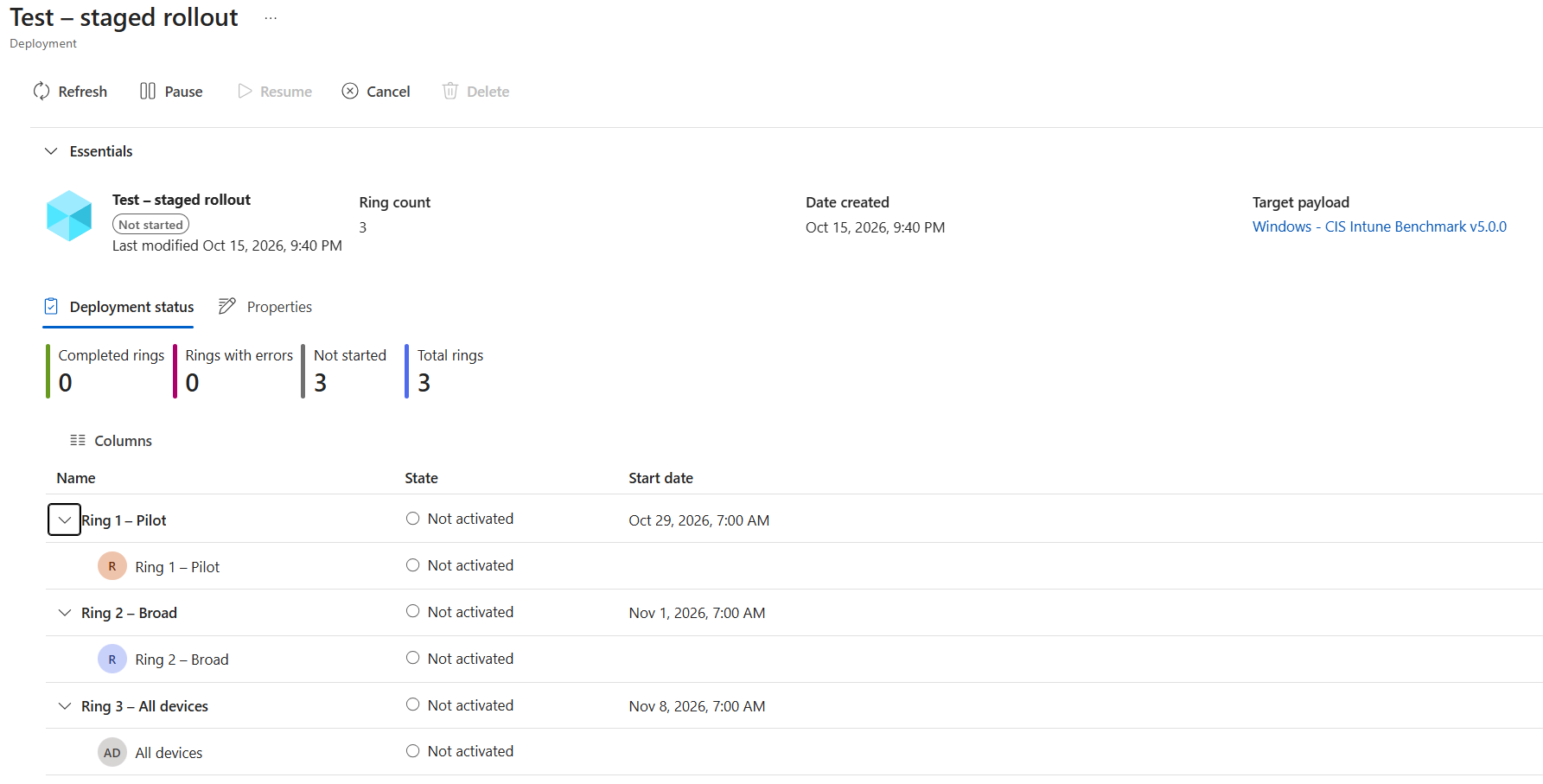
Open the deployment under Devices > Manage devices > Deployments. On the Deployment status tab you see how many rings are completed, have an error or have not started yet, and per ring the status and the start date. The example below is a deployment that has yet to begin.
At the top you choose:
Pause to stop the progress to the next rings;
Resume to continue;
Cancel to no longer run the next rings.
Pausing and canceling do not remove assignments of rings that were already active. If you really want to roll back the rollout, change the assignments in the properties of the app or policy itself.
If you use Multi Admin Approval, it applies here too. If an access policy protects the payload type, Create, Resume, Cancel and Delete require approval. A new deployment that is waiting for approval appears in the Deployments list only after it is approved.
User experience
Microsoft does not describe a separate notification for users. As soon as a ring becomes active, Intune puts the groups of that ring in the assignments of the app or policy. From that moment the assignment is active and the devices process it like any other assignment, with the ring’s assignment filters and the exclusions. Devices and users that are only in a ring that is not active yet get nothing through the deployment yet.
Wrapping up
Deployments record a staged rollout in Intune itself, for now as public preview and currently only for Windows.
Supported Windows devices can trigger a compliance evaluation themselves when the firewall or BitLocker changes. What that means and where to see the status.
Since 27 March 2026, Microsoft no longer supports the Remote Desktop client (MSI) for Azure Virtual Desktop in the public cloud. Switch to Windows App.