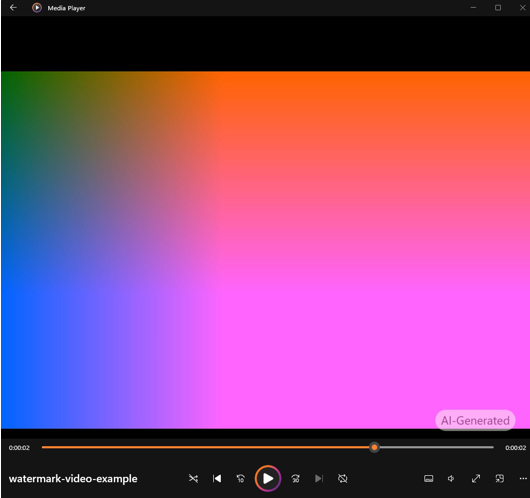
Often you want your AI policy to make it visible or audible when a video or audio clip was made with AI. In the Microsoft 365 Copilot release notes of 1 July 2026, Microsoft announced that administrators can have watermarks added to video and audio that users generate or alter with AI in Microsoft 365. By default, that does not happen.
In this blog post you read how to turn it on, what the watermarks look like and where it stops.
What does the setting do?
The policy Include a watermark when content from Microsoft 365 is generated or altered by AI is available only in Cloud Policy service for Microsoft 365. According to the documentation:
Video gets a visible watermark that shows throughout the video: the text “AI-Generated” or the Copilot icon in the bottom right corner. Example: a video from Clipchamp.
Audio gets a spoken sentence, “This audio is generated by AI.”, at the beginning or at the end. Example: an audio overview that Copilot makes from a Word document.
You cannot change the placement or the wording of the watermark.
With Disabled or Not configured, no watermark is added.
What do you need?
One of these Microsoft Entra roles: Office Apps Administrator (the role Microsoft recommends), Security Administrator or, only when nothing else will do, Global Administrator.
A subscription that includes Microsoft 365 Apps. Cloud Policy supports most of them. With Microsoft 365 Apps for business, only policy settings for privacy work. The documentation does not say whether this policy is one of them.
These are the requirements of Cloud Policy. The watermark page does not name the licenses for the AI features themselves.
Turn on the policy
Sign in to the Microsoft 365 Apps admin center at config.office.com. Microsoft Learn also gives a route through the Microsoft Intune admin center, but you cannot create this policy there: the page Apps > Policies for Microsoft 365 apps refers you to the Microsoft 365 Apps admin center.
Under Customization, select Policy Management and click Create.
Give the configuration a name, for example “AI watermarks – video and audio”, and click Next.
Choose the scope: all users or specific groups, and click Next. The policy applies only to users, not to devices.
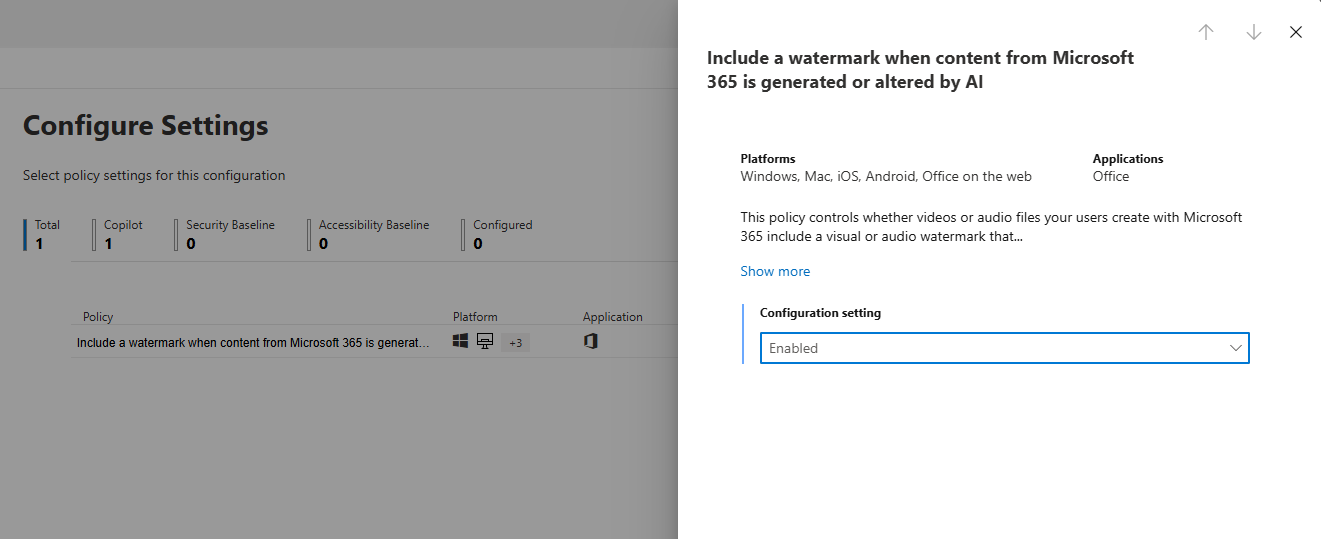
On the Configure Settings page, search for the policy Include a watermark when content from Microsoft 365 is generated or altered by AI, open it and set Configuration setting to Enabled.
Click Next, review your choices and click Create.
Office desktop apps retrieve policies periodically, sometimes only after 24 hours, and then apply them the next time an app starts. Whether that also holds for Clipchamp and Copilot, Microsoft does not describe.
Where it stops
Images are not covered. Users turn on watermarks for images themselves, at myaccount.microsoft.com under My Account > Data and Privacy > Data options > Watermarks for AI-generated content. The release notes give a different path here, Settings & Privacy > Privacy > Data options. If you want no images from Designer and the image generation in apps such as Word and PowerPoint, set the policy Control access to Designer Image Generation to Enabled.
Metadata on video and audio is unclear. For AI images, Microsoft 365 adds information to the metadata even without a watermark, such as which AI model or which app made them (see the C2PA website). For video and audio the documentation contradicts itself: a note says Microsoft is still working on it, with no time frame, while elsewhere on the same page and on the support page it says this already happens. So do not count on it yet.
The policy does not replace your own agreements. According to Microsoft, your organization remains responsible for the Microsoft Enterprise AI Services Code of Conduct. It contains a requirement for AI video before external use: your organization reviews the video against the Code, or the application adds a durable visible watermark and, as necessary, re-signed Content Credentials and meets the rest of it. Microsoft does not explicitly tie that requirement to Microsoft 365. As long as metadata on video is not certain, the watermark alone does not seem to be enough; so review AI videos for external use yourself.
Wrapping up
With one policy in Cloud Policy, you have Microsoft 365 add a watermark to AI video and audio once the policy has reached your users. Also set down in your AI policy how you handle images, since they are not covered.