Faster compliance updates for Windows in Intune
Supported Windows devices can trigger a compliance evaluation themselves when the firewall or BitLocker changes. What that means and where to see the status.
- Topic: Intune
- Platform: Windows

7 min readNew

You manage your organization’s laptops and phones with Intune and have set up compliance policies. Even so, a user can still sign in to Microsoft 365 from a personal laptop you don’t know, or from a device without a PIN or encryption. The compliance status then says something about the device, but does not block access to your cloud apps by itself.
Microsoft Entra has a ready-made Conditional Access template for this: Require compliant device. In this blog post you read how to use that template to enforce that only devices that are enrolled in Intune and meet your compliance policy can reach your cloud apps, apart from the accounts you deliberately exclude and a few exceptions from Microsoft (such as enrollment in Intune itself), how the user notices it, and how to see the result in the sign-in logs.
Conditional Access decides at every sign-in whether someone gets access and under which conditions. One of those conditions is that the device is marked as compliant. That status comes from Intune: a device that is enrolled in Intune is registered in Microsoft Entra ID, and Intune reports there whether it meets your compliance policies.
The Conditional Access templates are prefilled policies that follow Microsoft’s recommendations. The Require compliant device template is a policy for all users and all resources, with Require device to be marked as compliant as its grant control.
By default, Intune counts a device that has no compliance policy assigned as Compliant. Such a device would then also get through the Conditional Access policy. So change this tenant setting first:
After that, only devices that have been evaluated against a compliance policy and meet it get the compliant status.
The screenshot below comes from an older interface and still shows the template under its old name; Microsoft now calls it Require compliant device. The description in the screenshot also mentions excluded synchronization accounts. The current template excludes only the account that creates the policy.
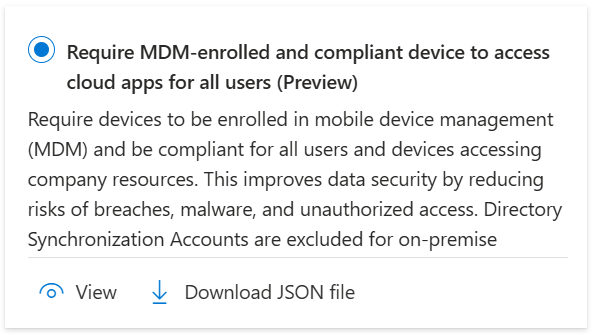
A policy created from a template is in report-only mode by default. It is then evaluated and logged at every sign-in, but not yet enforced.
The template fills in the policy like this:
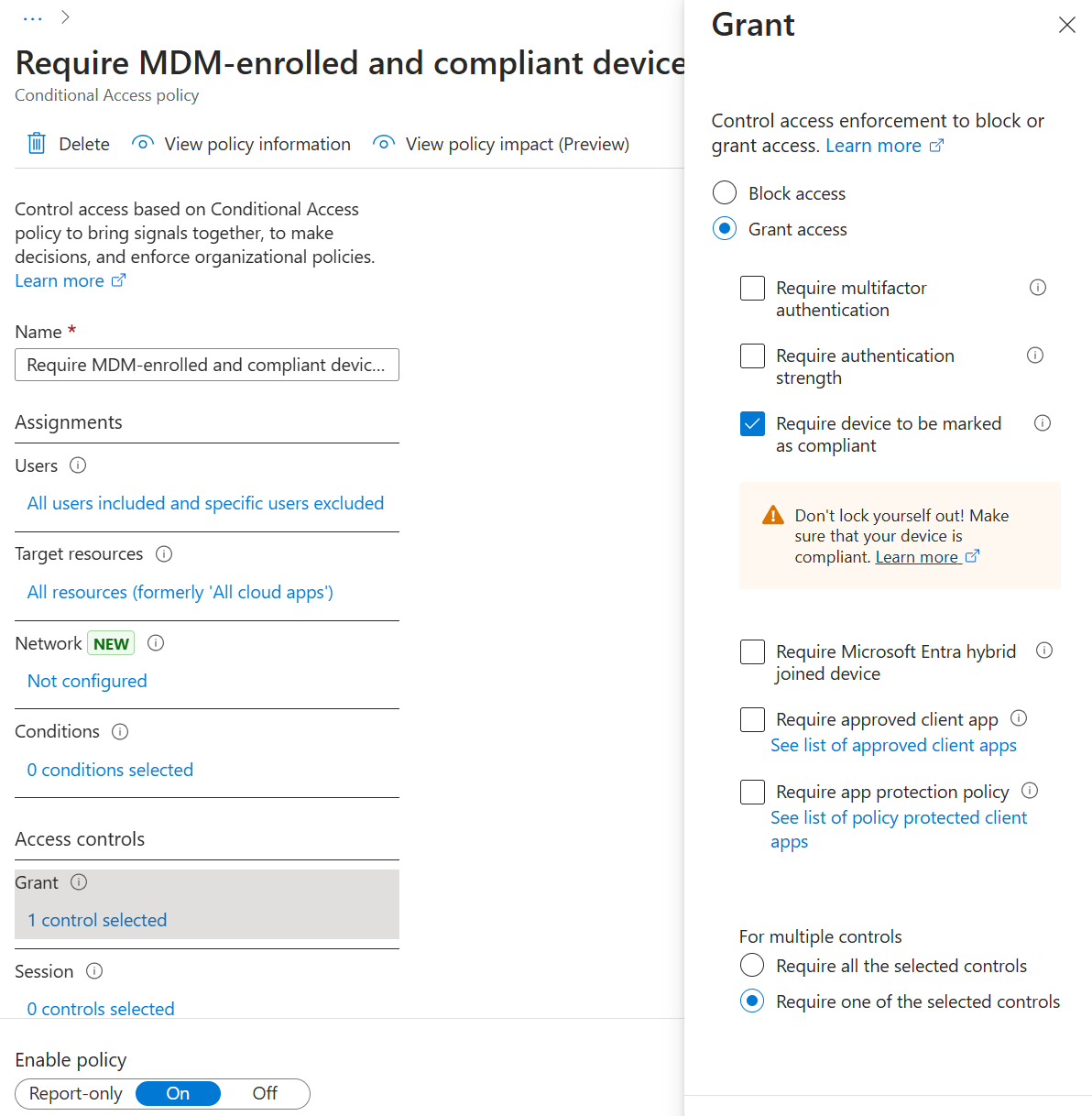
Adjust the exclusions before you turn the policy on:
The account you created the policy with stays excluded. If that account must use a compliant device too, first check that the device you manage from is compliant, and then remove that exclusion under Exclude.
💡 Emergency access accounts, also called break-glass accounts, are meant for the case where your normal admin accounts can no longer sign in, for example because of a misconfigured policy. Exclude them from every Conditional Access policy that blocks or restricts sign-in, such as this one. Microsoft describes how to set them up in Manage emergency access accounts in Microsoft Entra ID.
The grant control does not block enrollment in Intune itself. A user with a new device can therefore still enroll it and become compliant afterward.
Whether the policy does what you expect, you see in the sign-in logs. To also see the Conditional Access policies in the logs, you need at least the Security Reader role; with only Reports Reader you see the logs, but not the policies (Conditional Access and Microsoft Entra activity logs).
In report-only mode, a device that is not compliant shows the result Report-only: Failure, and a compliant device Report-only: Success. There is also Report-only: User action required: the user would then first have to do something to meet the policy. This way you see, before turning it on, at which sign-ins the policy would block.
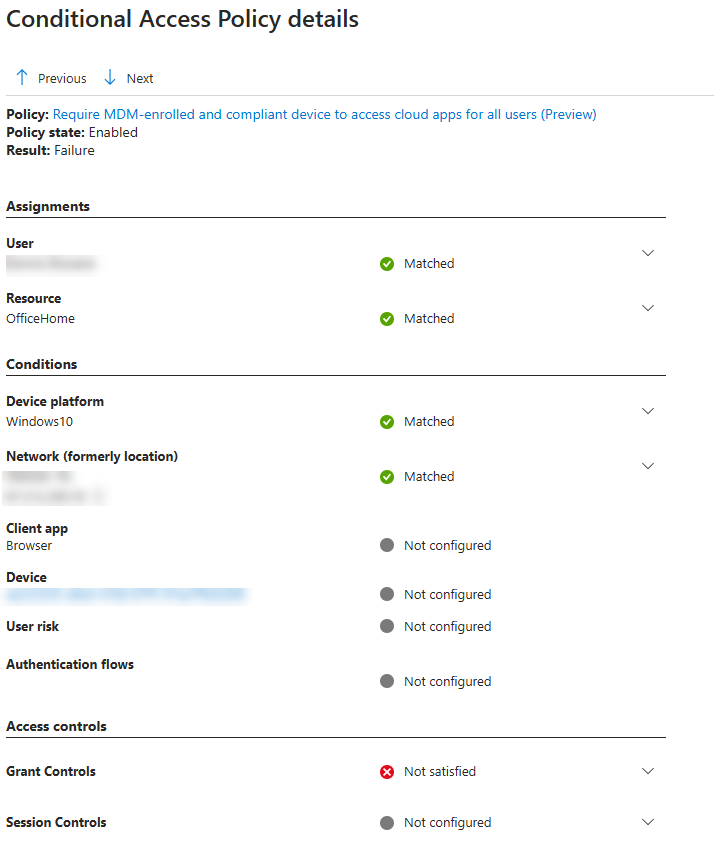
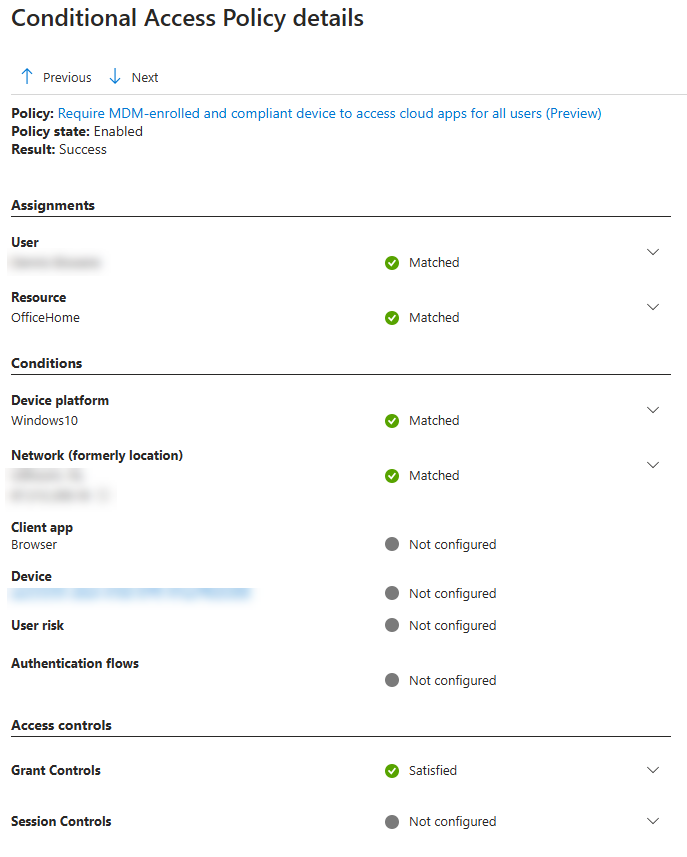
Once the policy is on, the result is Failure or Success, or Not applied for accounts and platforms you excluded. The two screenshots below come from a policy that was already on, and also show the old name of the template. For a device that is not compliant:
For an enrolled, compliant device:
An overview of all possible results is in Conditional Access report-only mode.
💡 A report-only policy that requires a compliant device can already ask users on macOS, iOS and Android to choose a device certificate, even though nothing is enforced yet. To prevent that, exclude those platforms while the policy is in report-only mode.
As soon as the policy is on, Conditional Access checks whether the device is compliant when the user signs in to a cloud app. If it is not, the user does not get access.
On iOS, Android and macOS, and in some browsers that are not from Microsoft, Microsoft Entra ID recognizes the device by a certificate that was placed during registration. At the first sign-in in the browser, the browser asks the user to choose that certificate; only then can they continue.
The screenshots below show what a user on a Windows device that is not compliant got to see. A message appeared in the browser, as in this screenshot:
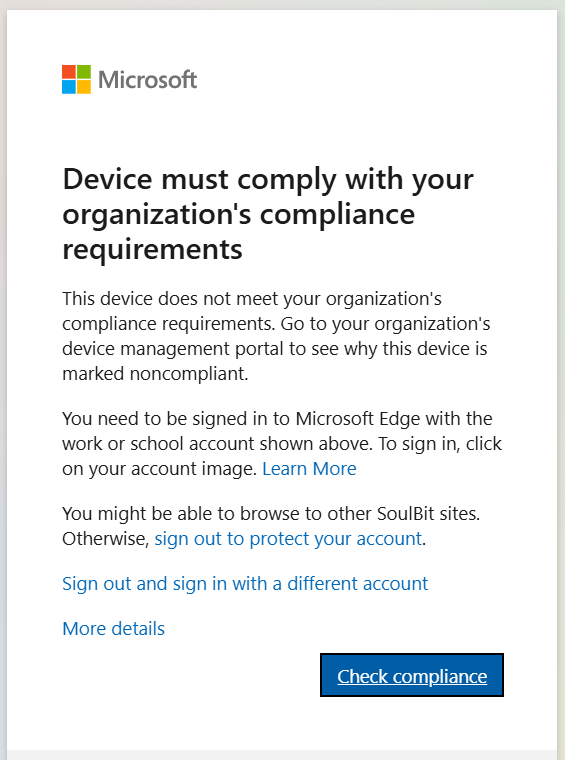
Which requirements apply depends on your Windows compliance policy: for example a password, encryption with BitLocker or a minimum version of Windows. If the version is too old, the user gets a link with an explanation about the update. In this screenshot the user was asked to update the operating system:
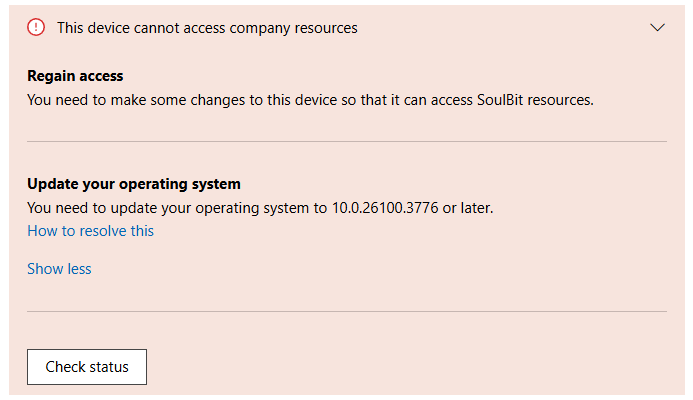
If your compliance policy requires Require BitLocker, keep in mind that Windows measures that setting only at startup. After BitLocker is turned on, the device must therefore restart before it becomes compliant. That stays the same with the faster compliance evaluation for Windows; see Faster compliance updates for Windows in Intune.
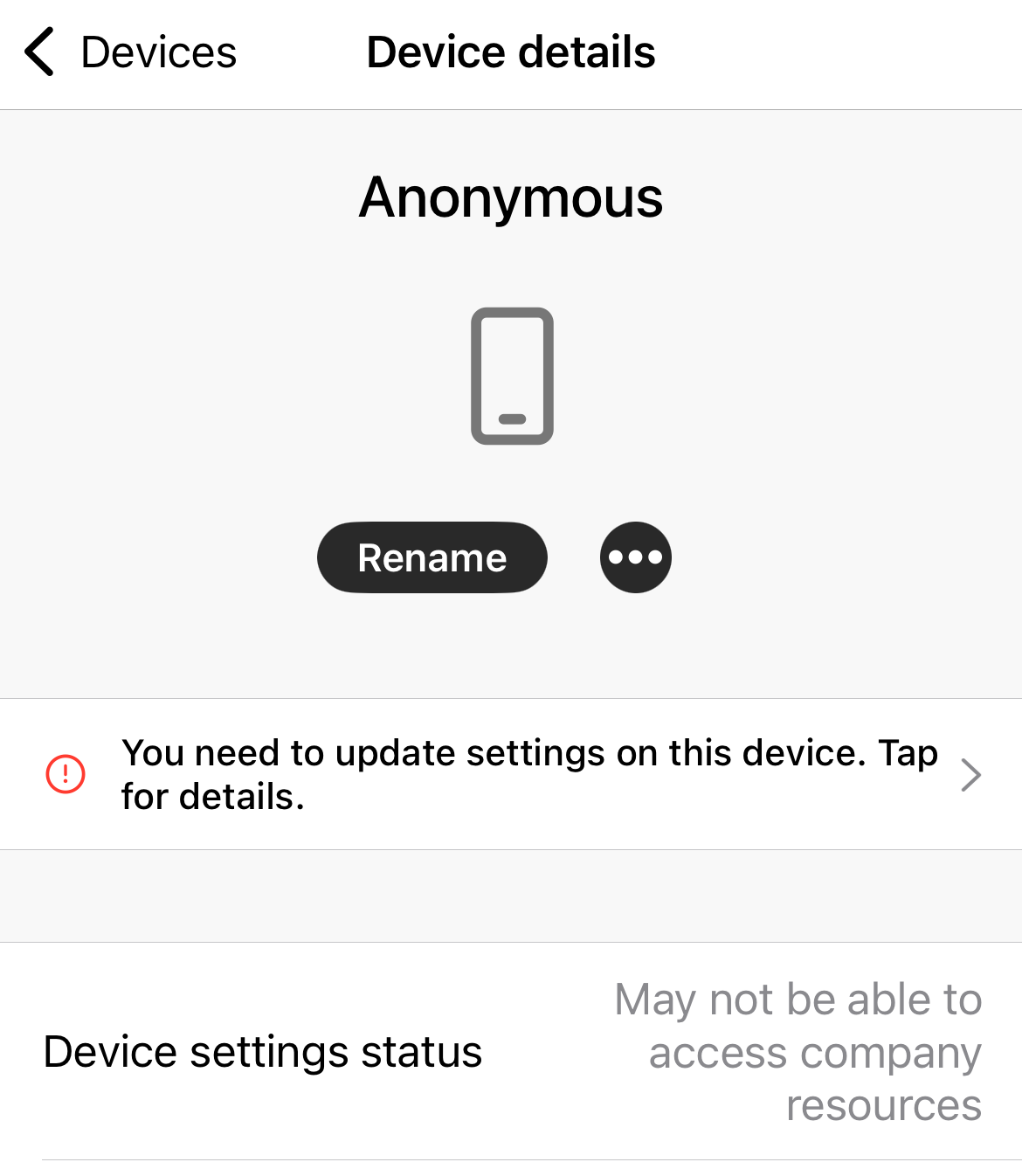
On iOS, the Company Portal app tells the user which compliance issues there are, for example a PIN that is too short or a version of iOS that is too old. This is what that looked like in the screenshot:
In this screenshot the app asked to update the device passcode:
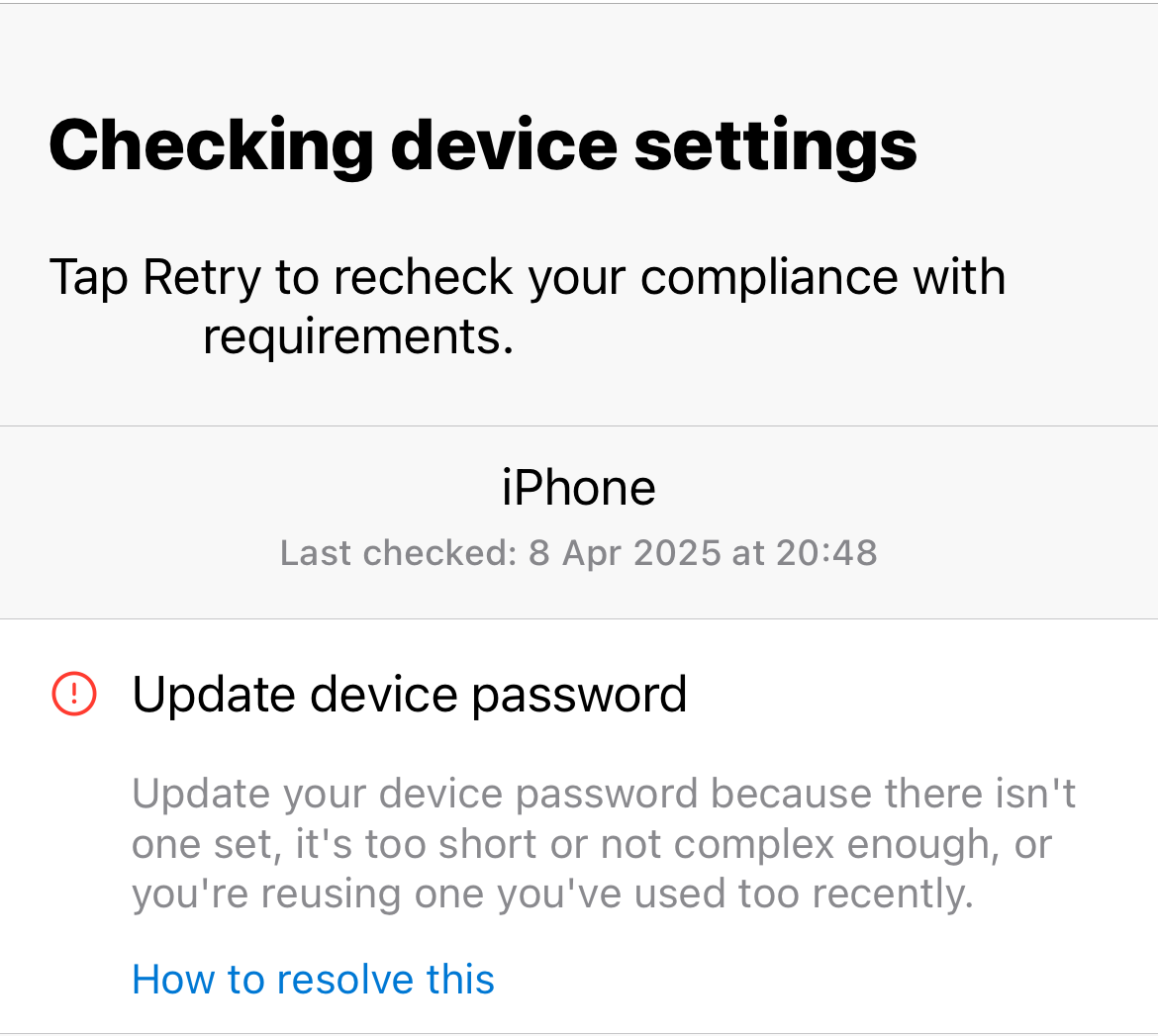
After a change, the user does not have to wait for the next check-in. They can start the check themselves in the Company Portal app: under Devices they choose their device and tap Check status. After that they see whether they have access.
With the Require compliant device template you link your Intune compliance policies to access to your cloud apps. Treat devices without a compliance policy as not compliant, start in report-only mode, exclude your emergency access accounts and check the sign-in logs before you turn the policy on.