💡 Note: outdated information. A check by SoulBit AI on 27 October 2026 found that some of the steps, menu paths and options in this post no longer match the current documentation from Apple and Microsoft. In Intune you now create new enrollment settings as enrollment policies under the enrollment program token; the profiles this post describes are the older experience, which gets no new features and will eventually be retired. The post stays as it was written. For the current steps, follow the documentation from Microsoft and Apple.
More and more organizations want to hand mobile devices – such as iPhones, iPads or Android devices – to end users already managed. With Apple Business Manager (ABM) or Apple School Manager (ASM) combined with Microsoft Intune, Apple devices can be enrolled automatically in the Intune MDM (Mobile Device Management) system, without manual interaction from the user. This ensures consistent management and supports a Zero Trust approach.
This post focuses on using Apple Business Manager (or Apple School Manager) together with Intune and describes the complete process step by step: from the connection to the user experience – including all relevant options, settings and prerequisites as described by Microsoft.
Updated in October 2026: Apple Business Manager has become part of Apple Business, together with Apple Business Essentials and Apple Business Connect. In March 2026 Apple announced that Apple Business is available from 14 April 2026. The steps and screenshots in this post are from Apple Business Manager. In Apple Business the menu paths are different: you create an MDM connection under Devices > Management Services (button Connect external device management, token via Download Service Token) and you download a content token under Settings > Payments & Billing > Apps & Books.
What do you need?
An Apple Business Manager account
Microsoft Intune
Set up the connection between ABM and Intune
To register devices automatically in Microsoft Intune, Apple Business Manager and Intune need to build a trust relationship. This starts with a public key that you generate in Intune and upload to ABM, after which you import a token generated by Apple into Intune. That creates a secure connection between the two systems.
Get the public key from Intune
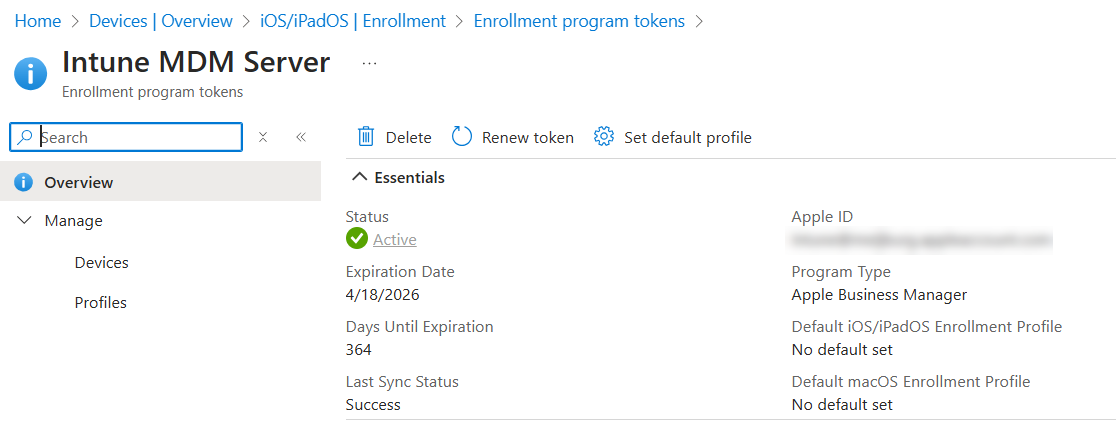
In the Intune admin center, go to Devices > iOS/iPadOS > Enrollment > Enrollment program tokens and click Create.
Agree to sending information to Apple.
Download the .PEM certificate, which you upload to ABM in a later step.
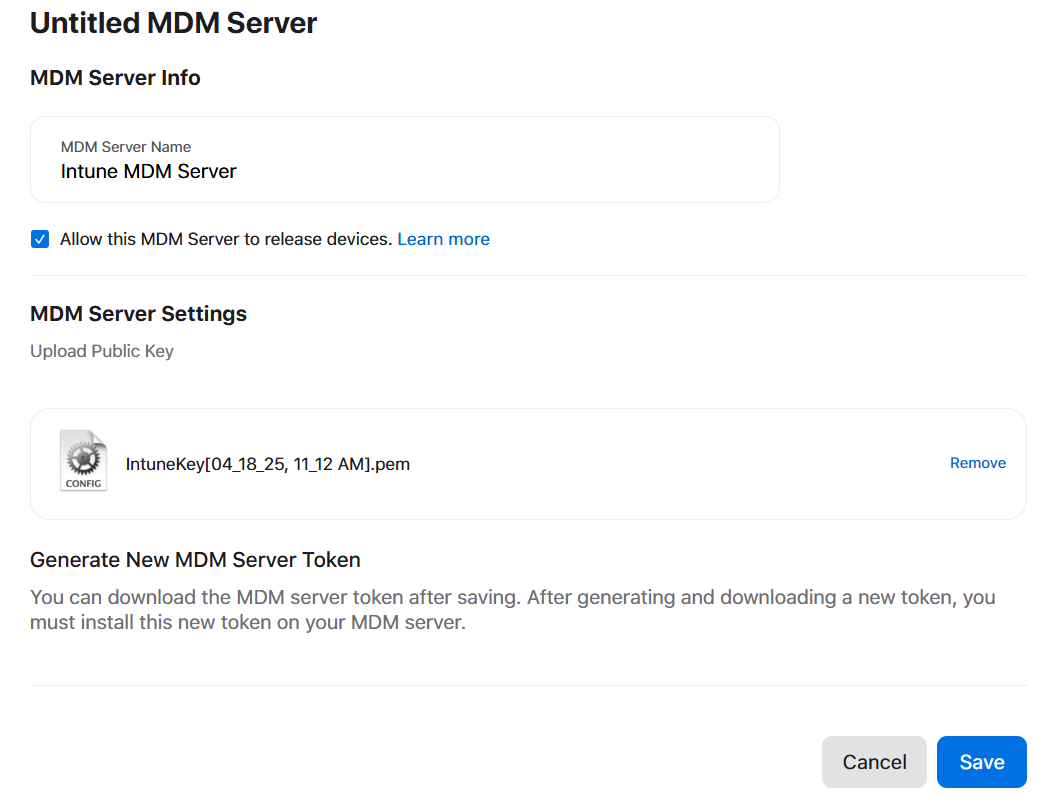
Navigate to Preferences > Your MDM Servers and click the plus sign to add an MDM Server.
Give the server a recognizable name (for example “Intune MDM Server”) and upload the .PEM certificate you downloaded earlier.
Now click Download MDM Server Token; this is a .P7M file that Apple generates.
Upload the ADE token in Intune
Go back to the Intune admin center and enter the Apple ID account that was used for this.
Upload the .P7M file.
Click Next and then Create.
You have now created a connection between ABM and Intune.
Assign devices to Intune
Assign in Apple Business Manager
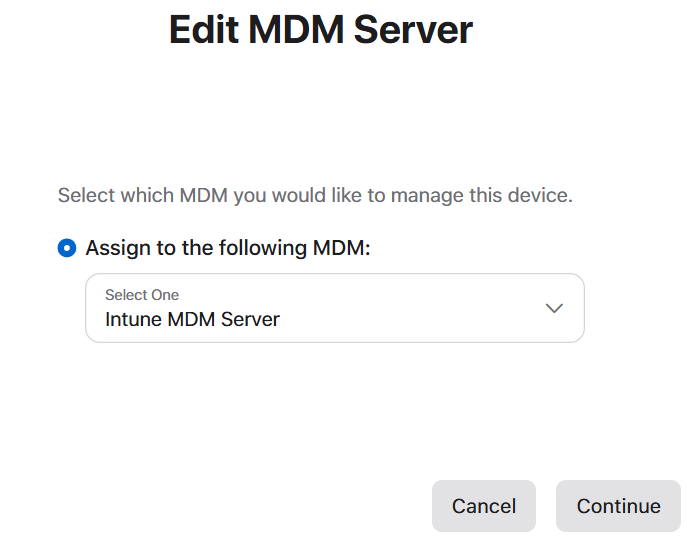
In ABM, go to Devices and select the right devices (by serial number or in bulk).
Choose Edit MDM Server and assign them to your MDM server (it must match your Intune server).
Add an Apple VPP token to Intune
The next step is to integrate the Apple Volume Purchase Program (VPP) with Intune. This is done with a content token that you generate in ABM and upload to Intune. It lets you buy and distribute apps centrally, without users needing an Apple ID.
Go to Preferences > Payments and Billing, and scroll to Content Tokens.
Click Download next to the server token of the location you want. You get a .vpptoken file.
Upload the VPP token in Intune
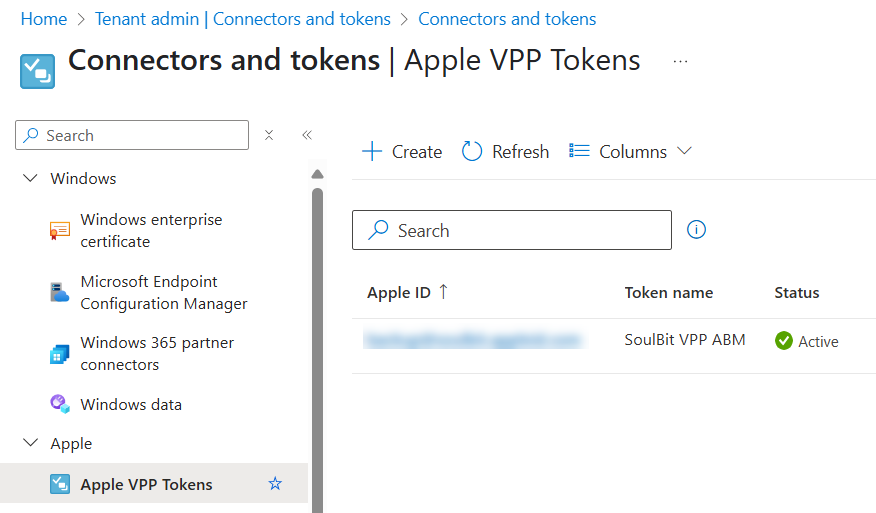
In the Intune admin center, navigate to Tenant administration > Connectors and tokens > Apple VPP Tokens.
Now click Create.
On the Basics page, enter the following details:
Token Name: a recognizable name for this token.
Apple ID: the Apple ID that was used to create the token.
VPP token file: upload the downloaded .vpptoken file.
On the Settings page
Take control of token from another MDM: choose Yes if this token was used elsewhere before.
Country/Region: select the right App Store region.
Type of VPP account: choose Business.
Automatic app updates: choose Yes to have apps update automatically.
Check: “I grant Microsoft permission to send both user and device information to Apple.”
Click Next, configure scope tags if needed, and click Create.
Once the status of the token is Active, you can buy and sync apps such as the Company Portal and assign them automatically to devices or users – fully managed through Intune.
Create an automated enrollment profile in Intune
After the connection between ABM and Intune is in place and devices are assigned, the next step is to create an automated enrollment profile. This profile determines how the device behaves during its initial configuration, which steps are skipped, and whether users have to sign in. It lays the foundation for a consistent and controlled onboarding experience.
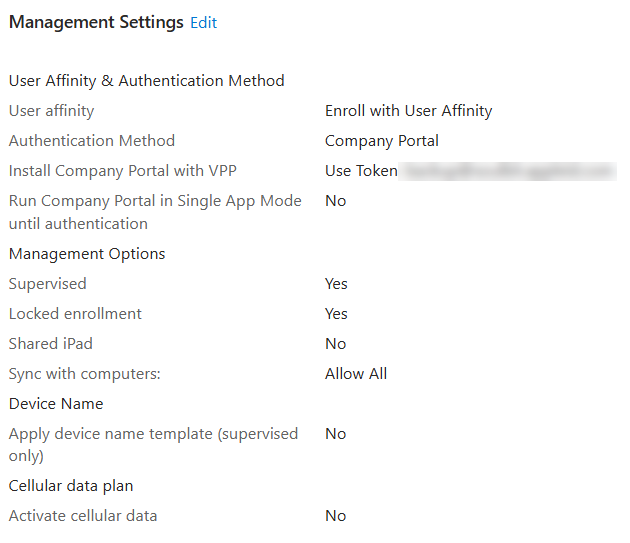
You have three choices for User Affinity – this determines how the device relates to users:
Enroll with User Affinity – For devices with a dedicated user. Required if you want to use the Company Portal and user-specific apps.
Enroll without User Affinity – For kiosks or shared devices without a dedicated user. No user profile needed.
Enroll with Microsoft Entra ID shared mode – For shared scenarios such as frontline workers. Offers a slimmed-down experience with shared sign-in.
Choose a suitable authentication method
When you create an enrollment profile, you choose not only whether the device uses User Affinity, but also how users have to authenticate. Intune offers four options here, which affect the user experience and compliance registration:
Intune Company Portal app
Use this option if you want to enforce multifactor authentication (MFA) or want to apply Conditional Access. With the Company Portal app, users have to sign in to get access to company apps and resources. This option lets you turn on Single App Mode, so that the Company Portal app opens automatically after the Setup Assistant and users have to sign in before they can use the device.
Setup Assistant with modern authentication
The recommended method for most scenarios. Users already authenticate during Setup Assistant. The Company Portal is installed automatically, but is not needed to get access to the device. This method supports MFA and Conditional Access, and works without extra app configuration.
Just in Time (JIT) Registration
This method does not require the Company Portal for registration and compliance. Instead, Microsoft Entra registration is done through an app that uses the Apple SSO extension. This is ideal for environments with a lot of SSO use. It does require an extra configuration policy.
Setup Assistant (legacy)
Only use this if modern authentication is not needed. This method registers the device without Conditional Access or MFA.
Create the profile in Intune
Go to Devices > iOS/iPadOS enrollment > Enrollment Program Tokens in the Intune admin center.
Click the token you created, go to Profiles and choose Create profile.
Select iOS/iPadOS as the platform.
Then configure the following settings:
Name: for example “iPhones Marketing”
User Affinity:Enroll with User Affinity, without User Affinity or Microsoft Entra ID shared mode
Authentication method: for example Setup Assistant with modern authentication
Install Company Portal with VPP: Yes if you use modern authentication – this does require a linked Apple VPP Token.
Supervised: choose Yes – required for full management capabilities and needed if you use the Company Portal for registration.
Locked enrollment: decide whether users may remove the MDM registration.
Sync with computers: turn this off if devices may not sync with Finder/iTunes.
Apple Configurator certificates: optional, if needed for devices managed with Apple Configurator.
Apply device name template: choose Yes if you want to apply a naming template (only available for supervised devices).
Cellular data plan: choose Yes if you want to activate cellular data plans right away.
Then click Next and set up the Setup Assistant.
Configure the Setup Assistant screens
You can skip several steps to streamline the user experience. For example:
Department: Name of the department or company. This is shown during enrollment.
Department Phone: Phone number of the department or company. This is shown during enrollment.
Setup Assistant Screens: Choose for each item whether to show it (Show) or hide it (Hide) during setup.
💡 Suggestions to hide: Apple Pay, Diagnostics, SIM Setup, Device-to-Device Migration.
Click Next, configure scope tags if needed, and click Create.
After the profile is created, go to Assignments and assign the profile to a group of devices that should get this profile.
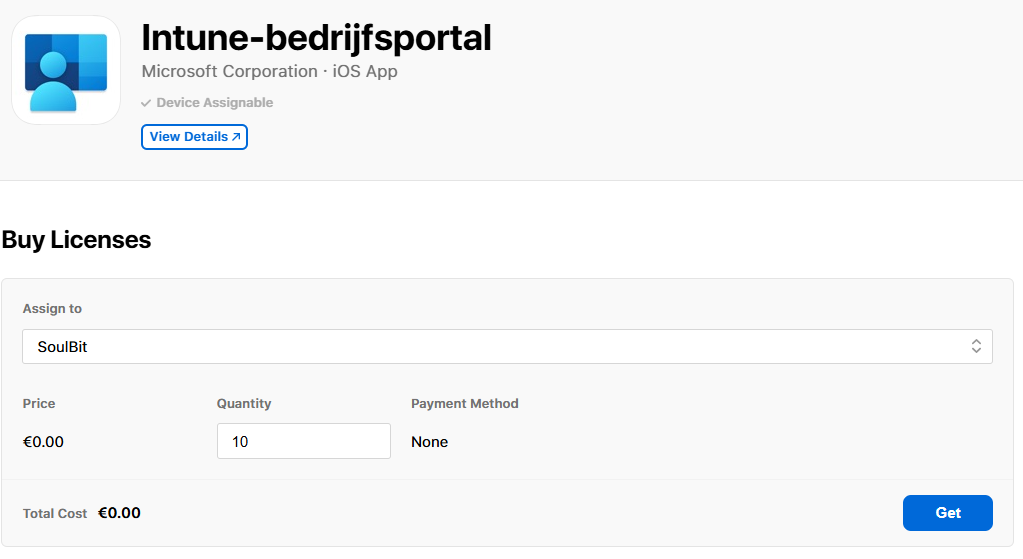
Now search for the Company Portal (Intune Bedrijfsportaal) and add it to the linked content token.
Once this is assigned, the app appears in Intune by itself after a sync.
Now go to the Apps blade of Intune.
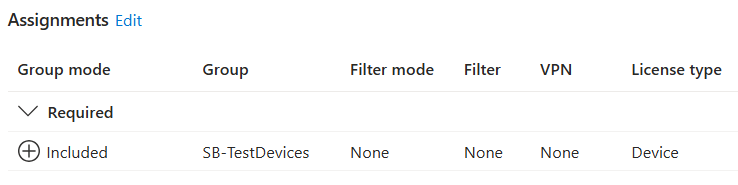
Look up the app, assign it to a device group, use Device Licensing and set the deployment to Required.
User experience
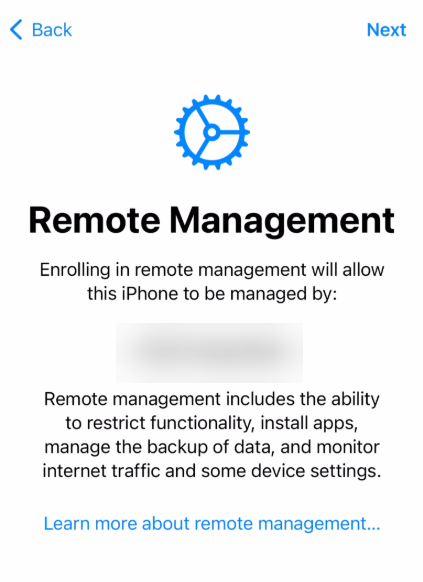
When an end user turns on a new iPhone or iPad:
The device recognizes that it is linked to your organization (through ABM).
The Setup Assistant starts and installs the profile.
Supervised mode is activated in the background.
The user is asked to sign in when User Affinity is used.
Settings, compliance policies and apps are pushed automatically.
Wrapping up
Together, Apple Business Manager and Intune make it possible to deploy iPhones and iPads fully automatically and managed, without manual actions or the risk of a wrong configuration. Especially in the context of Zero Trust and compliance, this is a powerful combination that contributes to a secure, manageable modern workplace.
Onboard iPhones and iPads into Microsoft Defender for Endpoint with zero-touch through Intune, and use the risk level in compliance and app protection.