SMTP AUTH with Basic authentication: the new timeline in Exchange Online
Microsoft is moving the end of Basic authentication for SMTP AUTH. What changes at the end of 2026 and how to prepare your printers and apps now.

5 min readNew

Jan Jansen has the address jan@contoso.com, but customers know him as j.jansen@contoso.com. Mail to that second address simply arrives in his inbox. When he sends a message himself, Exchange Online rewrites the sender address to his primary address by default, and that is what the recipient sees.
Exchange Online can also let users send from such a second address, an alias. In this blog post you read how to turn on sending from aliases in Exchange Online, add an alias to a user and choose that alias as the sender in Outlook on the web. You also read what plus addressing is and why you cannot send from it.
An alias is an extra email address on a user’s mailbox. Mail to the alias arrives in the same inbox as mail to the primary address. According to Microsoft you can give a user up to 400 aliases, without an extra license or cost (Add another email alias for a user). If several people have to handle the mail on one address, such as support@contoso.com, Microsoft recommends a shared mailbox instead of an alias.
By default, Exchange Online rewrites an alias on messages to the primary address. The organization setting SendFromAliasEnabled of Set-OrganizationConfig turns that rewriting off. Outlook clients that support it then let users send from an alias and reply to an alias.
Set-OrganizationConfig cmdlet to change the organization setting.The setting applies to the whole organization. Users without a newer Outlook client can notice something too, because it acts on all messages a mailbox sends and receives. So let users know that this is coming. Microsoft Learn describes the setting as a parameter of Set-OrganizationConfig; that is why the PowerShell route is shown here.
SendFromAliasEnabled to $true.This block runs the three steps:
# Connect to Exchange Online with an admin account
Connect-ExchangeOnline -UserPrincipalName admin@contoso.onmicrosoft.com

# Stop rewriting aliases to the primary address, so users can send from an alias
Set-OrganizationConfig -SendFromAliasEnabled $true

# Close the session
Disconnect-ExchangeOnline
With $false you set the setting back to its default value.
Microsoft describes adding an alias as a task for the administrator, in the Microsoft 365 admin center.
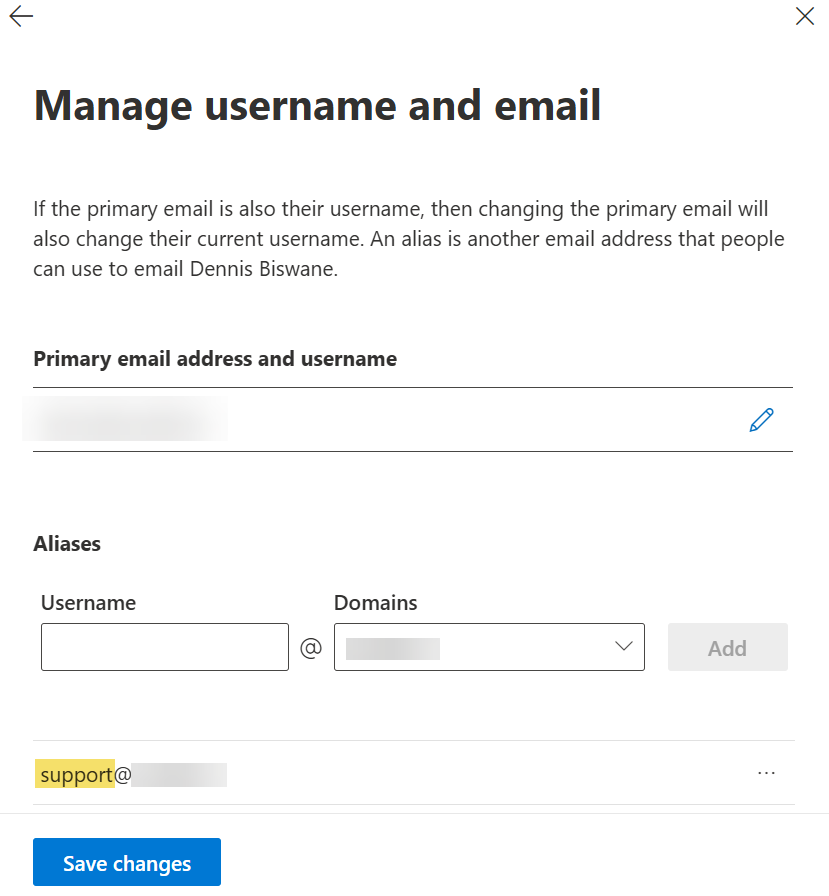
In the screenshots, the alias support@ is a personal alias of one user; for an address that several people handle, you use a shared mailbox.
It can take up to 24 hours before a new alias is updated everywhere.
💡 If the user is synchronized from an on-premises Active Directory, you add the alias there, in the proxyAddresses attribute with the prefix smtp: in lowercase. Then wait until the change has been synchronized to Microsoft Entra ID.
When sending from aliases is turned on and the feature is available in Outlook on the web, the user gets a list with a checkbox per alias in the Outlook on the web settings. An alias they select there can be chosen in the From field of a new message.
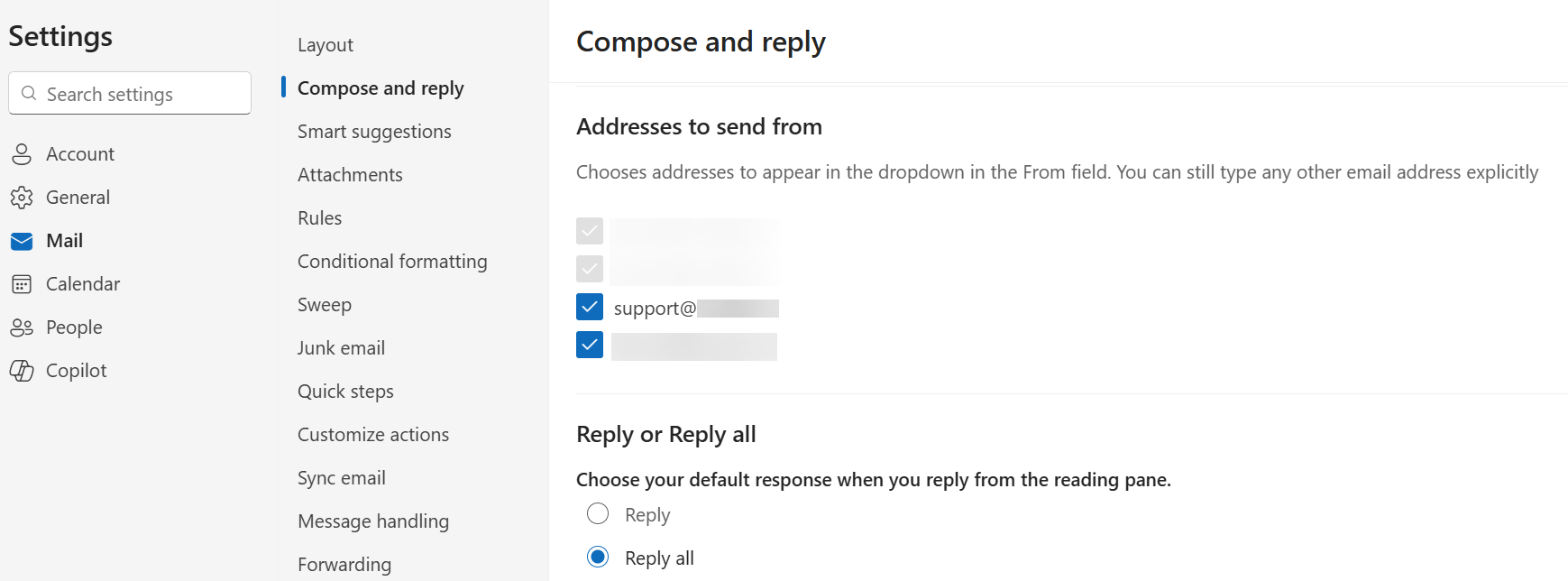
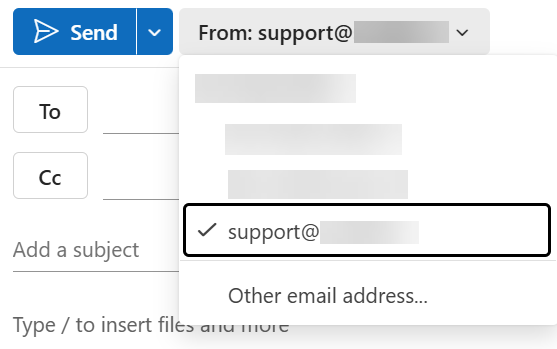
Plus addressing looks like an alias, but works only for receiving. A user puts a plus sign and a label after the first part of their address themselves, such as jansen+newsletter@contoso.com. Exchange Online delivers that message to jansen@contoso.com. Nobody has to create such an address, and with an inbox rule on the receiving address the user sorts such messages automatically.
Plus addressing is on by default in Exchange Online. A plus address is not an alias on the mailbox: the user cannot send from it, and Outlook does not show it as their name in To or CC.
If you do not want it, you turn it off for the whole organization.
In the screenshot the checkbox is selected, so plus addressing is off there.
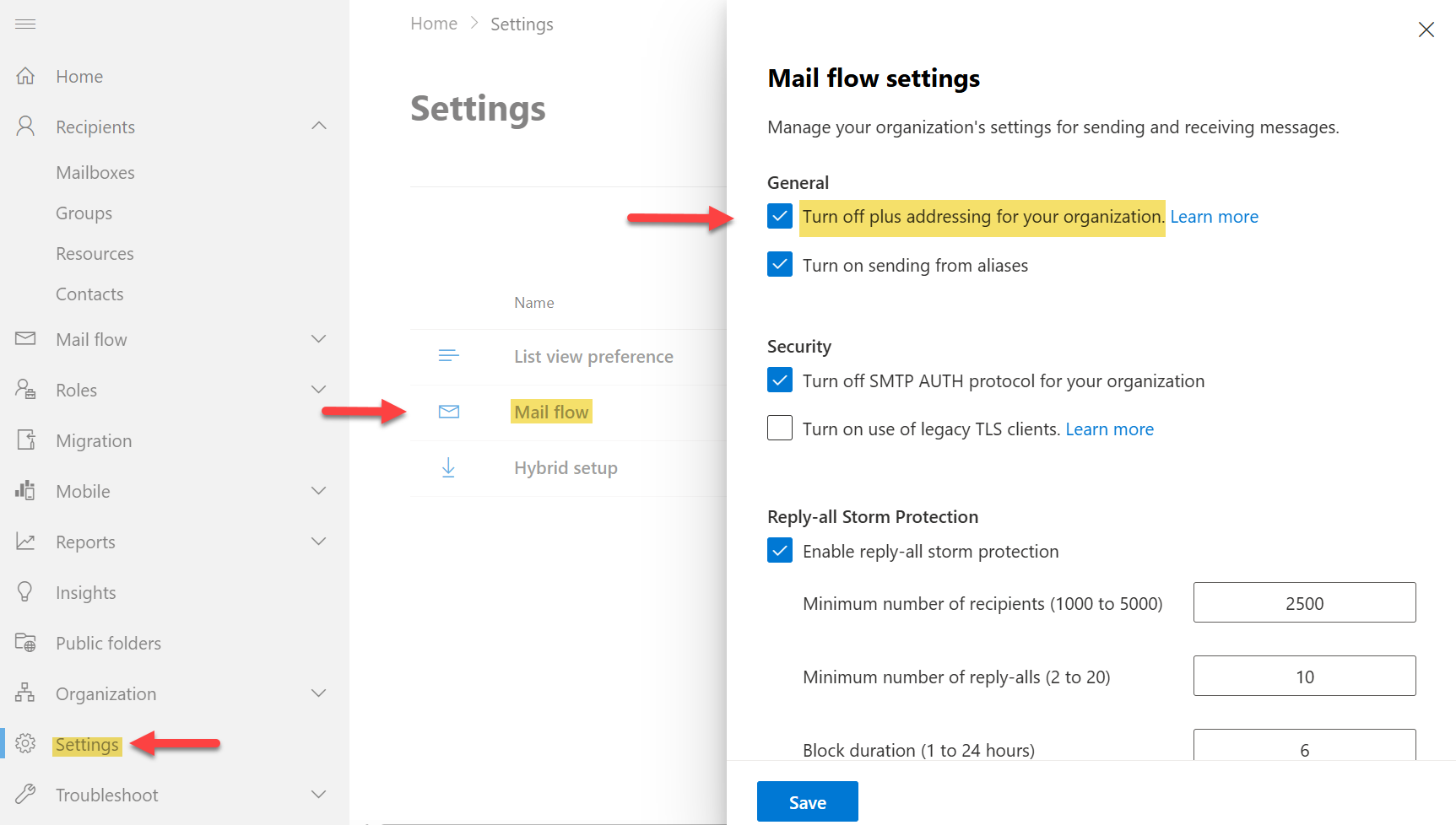
With PowerShell you do the same with the DisablePlusAddressInRecipients parameter:
# Turn off plus addressing for the whole organization
Set-OrganizationConfig -DisablePlusAddressInRecipients $trueWhen a user sends a message from an alias, Exchange Online no longer rewrites the alias to the primary address. Because the address is no longer rewritten, the recipient sees the alias as the sender.
When replying, the sender address depends on the client. Outlook on the web replies from the alias the message arrived on. According to Microsoft, Outlook for desktop replies from the primary address, although support differs per client and version; Outlook clients that support sending from aliases can also reply from the alias. Tell users this, so they know which address the recipient sees.
With one organization setting, an alias per user and a checkbox in Outlook on the web, employees can send email from a recognizable address in Outlook on the web, and in other Outlook clients that support it, without an extra mailbox or license. Plus addressing complements that for addresses on which you only want to receive.
📚 Read more in Add another email alias for a user and Plus Addressing in Exchange Online.