Many users still start their Azure Virtual Desktop session with the Remote Desktop client for Windows, the version you install as an MSI. That client was the standard for years, and so it is on many laptops that have been in use for a while.
Since 27 March 2026, Microsoft no longer supports that client for customers in the public cloud. Microsoft points to Windows App as its successor. In this blog post you read what exactly ends, what Windows App is, and how to deploy Windows App to your Windows devices with Intune.
Updated on 27 October 2026: for the Store app the release notes now only name September 2025 as the end of support, the MSI client can no longer be downloaded, and a limitation Microsoft no longer lists was removed.
Remote Desktop client for Windows (MSI), public cloud
No longer supported since 27 March 2026
Remote Desktop client for Windows (MSI), Azure Government, Azure operated by 21Vianet and Azure Virtual Desktop (classic)
Support extended until 28 September 2026
Remote Desktop app from the Microsoft Store
No longer supported and no longer available for download (end of support in September 2025)
Microsoft writes that users must switch to Windows App to keep access to their Azure Virtual Desktop and Windows 365 resources. The page Connect to Azure Virtual Desktop also says that you must use Windows App, because it replaces the Remote Desktop client.
As of October 2026: the extension for Azure Government, Azure operated by 21Vianet and Azure Virtual Desktop (classic) ended on 28 September 2026. Microsoft also no longer offers the client for download or installation.
💡 Note: Windows App on Windows does not yet support Remote Desktop Services. The Windows App page refers to the Remote Desktop app for that, but according to the release notes that client is no longer supported or available for download since 28 September 2026. Microsoft names the end date of 27 March 2026 for customers in the public cloud who connect to Azure Virtual Desktop and Windows 365.
What is Windows App?
Windows App is the client users connect with to Azure Virtual Desktop, Windows 365, Microsoft Dev Box and remote PCs. The app exists for Windows, macOS, iOS/iPadOS, Android and Chrome OS, and also runs in a web browser. A user can sign in with multiple accounts and switch between them.
Not every feature is available on every platform. Microsoft keeps a comparison of features per platform for this. Review it before you switch, especially if your users work on different kinds of devices.
What do you need?
A Windows device that the manufacturer still supports, with Windows 11 (also LTSC and IoT Enterprise), Windows 10 version 1809 or later (also LTSC and IoT Enterprise) or Windows Server 2019 or later. Windows 10 devices outside mainstream support must be in the Extended Security Updates (ESU) program.
A work or school account for Azure Virtual Desktop with at least one assigned desktop or app. Signing in with a personal Microsoft account is not possible.
For deployment with Intune: an Intune administrator with sufficient permissions, and devices with at least two processor cores that support the Intune Management Extension.
Connecting to Azure Germany and to Azure Virtual Desktop (classic) is not supported.
Resetting user data through the app itself is not possible. Reset Windows App through the Windows settings instead.
Deploy Windows App with Intune
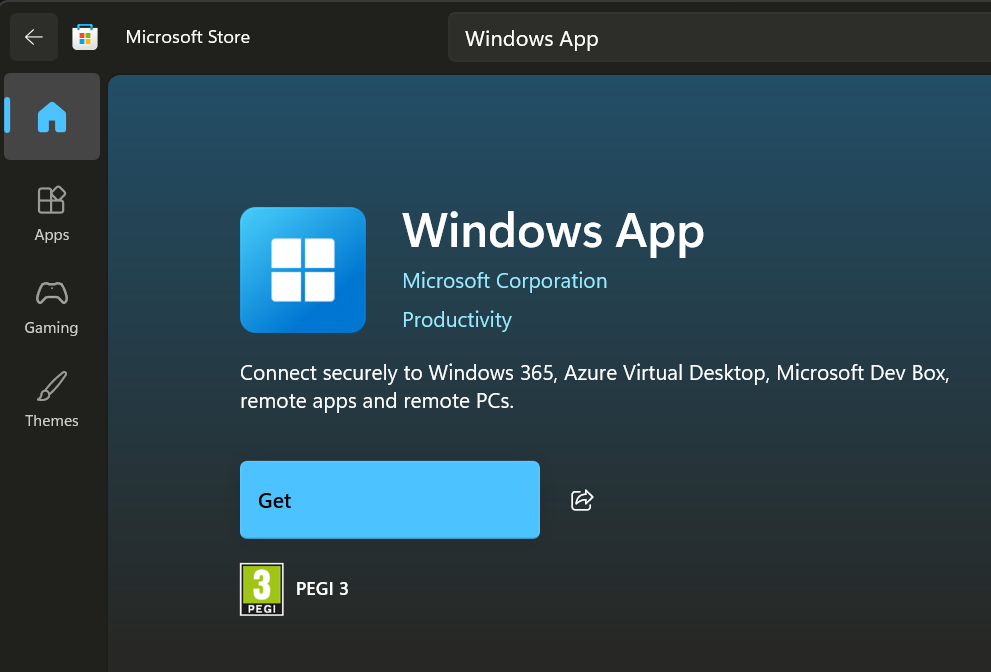
Windows App is in the Microsoft Store. With the app type Microsoft Store app (new) you add the app to Intune; Intune then keeps apps from the Microsoft Store up to date automatically, provided the Store policy does not block automatic updates (see below). Outside the Store, Microsoft also offers an MSIX installation file, through the page What’s new in Windows App.
Add the app
Open the Microsoft Intune admin center and navigate to Apps > All Apps > Create.
In the Select app type pane, under Store app, choose Microsoft Store app (new) and click Select.
Click Search the Microsoft Store app and search for “Windows App”. You can also search for the Store app ID 9N1F85V9T8BN, the ID in the Store link of Windows App.
Select the app and click Select. Name, description and publisher are filled in from the Store.
Under Install behavior, choose System or User. If the option is grayed out, the app supports only the preselected value. For devices enrolled as Microsoft Entra registered, you must choose System.
Click Next.
Assign the app
Choose the assignment type. With Required, Intune installs the app on the devices in the chosen groups; with Available for enrolled devices, users install the app themselves from the Company Portal.
Click Add group and choose the groups of users or devices that work with Azure Virtual Desktop.
Click Next, review the settings and click Create.
💡 According to Microsoft, automatic updating of UWP apps from the Store only works properly if the policy setting Turn off Automatic Download and Install of updates is not turned on. Check that setting if you use that policy.
User experience
The user opens Windows App and clicks Sign in. On a managed Windows device where the user is already signed in with a work or school account, that happens automatically. On first use, a short tour follows, which the user closes with Done or skips with Skip.
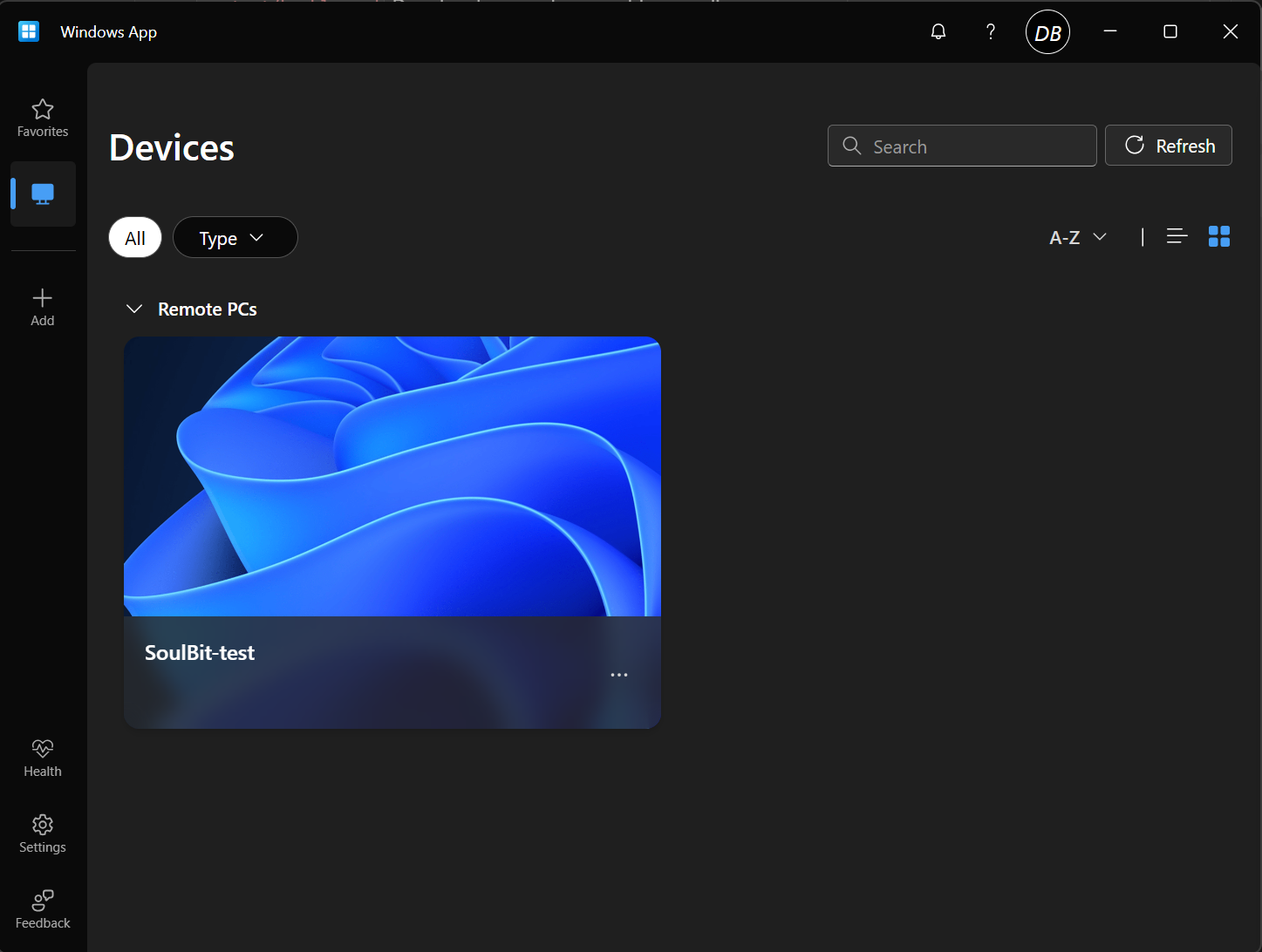
After that, the assigned desktops and apps are under the Devices and Apps tabs. A tab without assigned resources is not shown. With Connect the user starts a session. Depending on your configuration, Windows App asks for the password once more. Desktops and apps that are used often can be pinned under Favorites.
If a user sees no desktops or apps, Microsoft refers them to the administrator. Microsoft does not name this as a step, but in that case check whether they have been assigned desktops or apps in Azure Virtual Desktop; this is an interpretation, not from the source.
Wrapping up
Users in the public cloud who still connect to Azure Virtual Desktop with the Remote Desktop client (MSI) have been working since 27 March 2026 with a client that Microsoft no longer supports for that. As of October 2026: the extension for Azure Government, Azure operated by 21Vianet and Azure Virtual Desktop (classic) also ended on 28 September 2026. Deploy Windows App through Intune, check the known limitations and show users where to find their desktops and apps.
Supported Windows devices can trigger a compliance evaluation themselves when the firewall or BitLocker changes. What that means and where to see the status.