Stronger security with Conditional Access: require MDM and compliance
Use the Require compliant device template so users sign in to your cloud apps only from an enrolled, compliant device.

6 min readNew

You have turned on passkeys in Microsoft Entra ID, but users still have to register one themselves. Asking everyone personally to do that takes a lot of time.
In May 2026, Microsoft made passkeys (FIDO2) generally available as the target of the registration campaign in Entra ID. Microsoft writes that this first rollout is optimized for users in a passkey profile without restrictions. In this blog post you read how to set up a registration campaign for passkeys, what the states do and what your users get to see.
A registration campaign asks users to set up a stronger authentication method after they have completed an interactive sign-in with multifactor authentication (MFA). You decide which users and groups take part.
The campaign has two target methods: Passkey (FIDO2) and Microsoft Authenticator. A tenant can target only one method at a time.
Conditional Access policies for registering security information apply here too: if a user may do that only on the internal network, they also get the prompt only there.
Passkeys (FIDO2) are included in all editions of Microsoft Entra ID, including Free, without an extra license.
The state determines who chooses the settings.
| Setting | Microsoft managed | Enabled |
|---|---|---|
| Target method | Chosen by Microsoft | Passkey or Authenticator |
| Days allowed to snooze | Chosen by Microsoft (1 day) | 0 to 14 days |
| Limited number of snoozes | Chosen by Microsoft (off for passkeys, on for Authenticator) | On or off |
| Include or exclude users and groups | Set yourself | Set yourself |
With Disabled the campaign is off.
In the Microsoft managed state, Microsoft chooses passkeys if the users in the campaign are enabled for passkeys, and otherwise Authenticator, provided they are enabled for it. An Authenticator campaign under Microsoft managed also prompts only users who do MFA with text message or a voice call. For passkeys, a user gets the prompt only if they are in at least one passkey profile that Microsoft considers eligible: without restrictions, only synced passkeys, only device-bound passkeys, an AAGUID allowlist with at least one AAGUID of iCloud Keychain, Google Password Manager, the passkey in Microsoft Authenticator or the Microsoft Entra passkey on Windows, or device-bound with enforced attestation. The Exclude and Block lists do not count here.
The page Protecting authentication methods in Microsoft Entra ID describes a narrower rule: the target method goes to passkeys only if users are in a profile that allows both synced and device-bound passkeys, and with a restriction to specific AAGUIDs the target method stays Authenticator. The pages contradict each other; this blog post follows the page about the registration campaign, which was updated more recently.
💡 Note: if your campaign is set to Microsoft managed, you have enabled passkeys and the users are in an eligible passkey profile, then according to the page Protecting authentication methods, Microsoft changes the settings step by step: the target method goes from Authenticator to passkeys, the snooze duration from 3 to 1 day, the limited number of snoozes is turned off, and all users who can do MFA get the prompt, not only those with text message or voice call.
If you do not want that, or want to decide the snooze settings yourself, choose Enabled. That is also the state for users in a passkey profile that does not count under Microsoft managed: in Enabled, every user who is enabled for passkeys can get the prompt, regardless of their passkey profile.
Without Allow self-service set up, users cannot add a passkey through Security info, even when passkeys are enabled. Check that setting first.
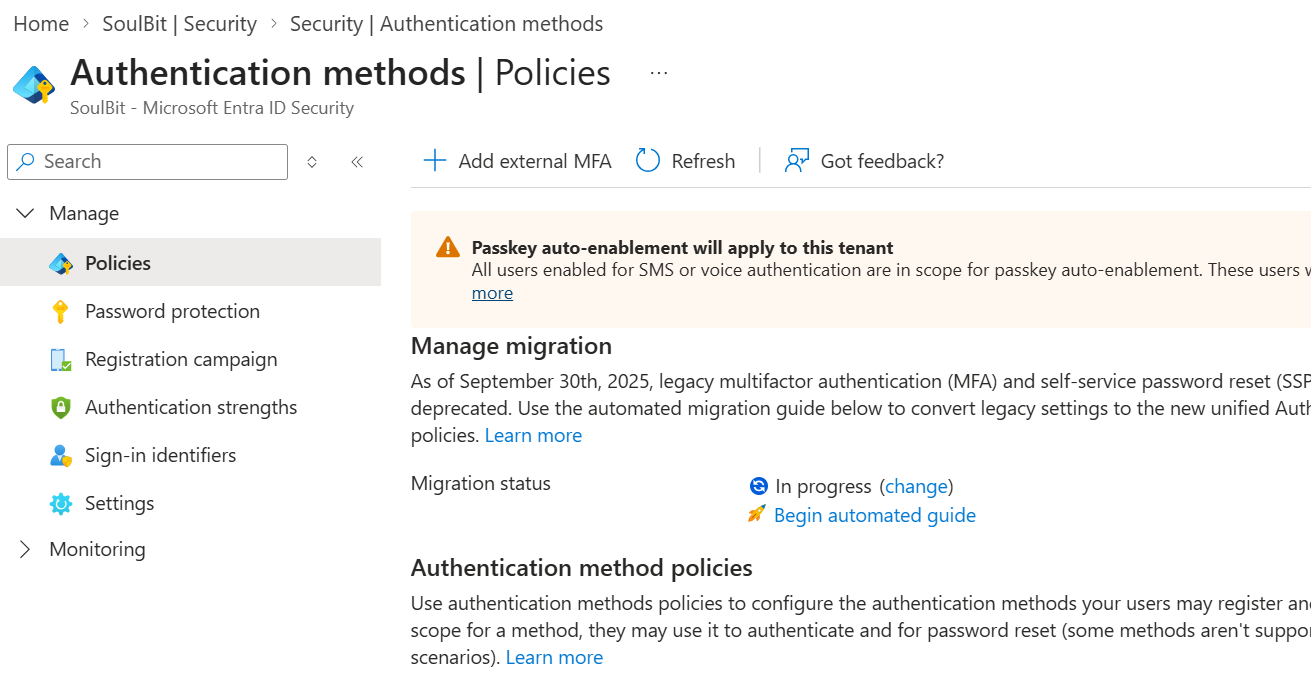
You can read more about passkey profiles and synced and device-bound passkeys in How to enable passkeys (FIDO2) in Microsoft Entra ID.
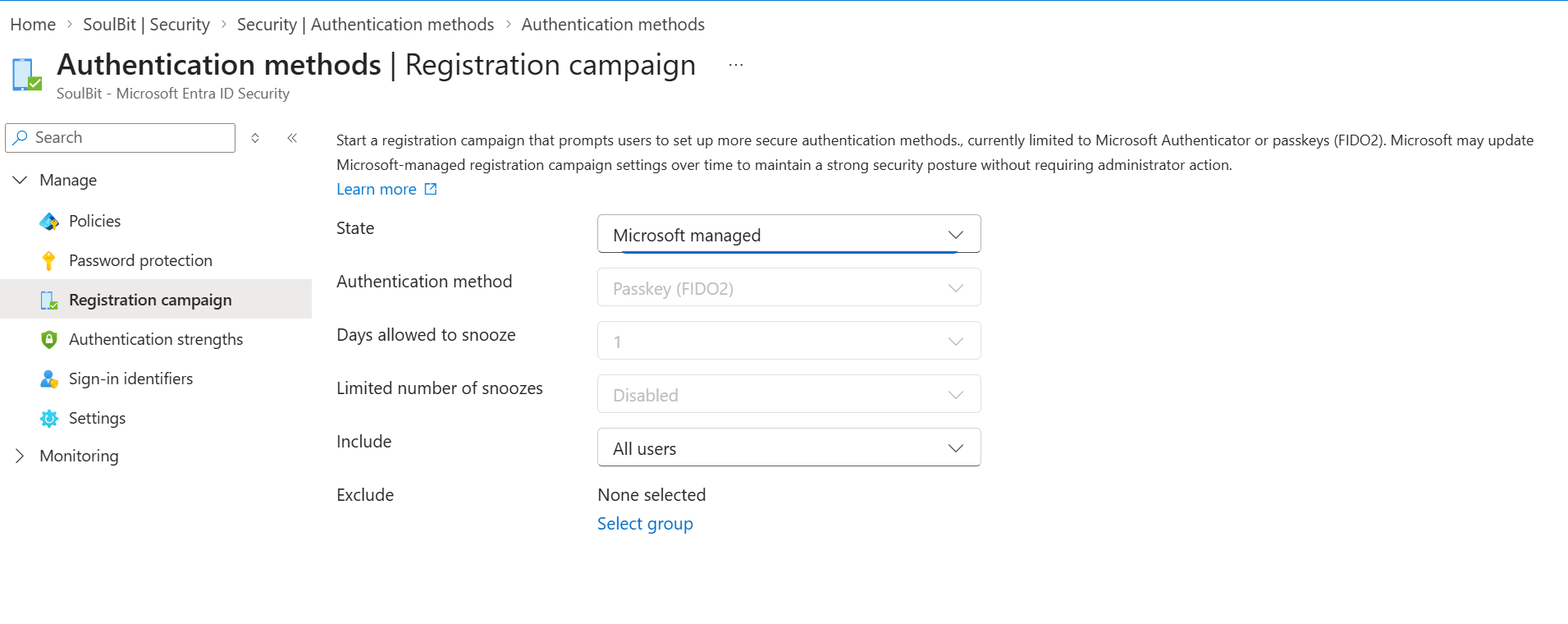
💡 The snooze duration applies to the whole tenant, not per group. If you do not want users to keep postponing, set Days allowed to snooze to 0 and Limited number of snoozes to Enabled. They then get the prompt at every MFA sign-in and must register after skipping for the third time.
A campaign stays active until you turn it off yourself. You can also set it up through the Authentication methods policy in Microsoft Graph, with fido2 as the target method.
After the MFA sign-in, the user is asked to set up a passkey if there is no suitable passkey for their current platform yet. They click Next, after which the device or browser shows where the passkey will be stored. They confirm with face, fingerprint or PIN, give the passkey a name on the Let’s name your passkey screen and finish with Done on the Passkey created screen.
With Skip for now the user postpones the prompt. If something goes wrong during registration, an error screen with Skip appears. That does not count toward the maximum number of snoozes.
Points for your help desk:
With a registration campaign for passkeys, Entra ID asks eligible users for a passkey after their MFA sign-in. Check the state of your campaign beforehand, because with Microsoft managed the target method can move to passkeys without any action on your part.
📚 All details per passkey profile and platform are in Run a registration campaign to set up a passkey or Microsoft Authenticator.