Administrator protection and the Windows 11 baselines
From the October update, the Security Compliance Toolkit baselines turn on Administrator protection. How to decide with Intune where it goes on.
- Topic: Intune
- Topic: Windows
- Platform: Windows

6 min readNew

A user on an Entra joined Windows device keeps getting sign-in prompts, or Conditional Access blocks the sign-in while the device looks compliant. A possible cause is the primary refresh token (PRT): it is missing, or it is no longer renewed. That token carries the device claims Conditional Access evaluates.
In this blog post you read how to check that step by step: what the PRT does, which fields you read in dsregcmd /status, how to find the error code, and what Microsoft names as the cause of common errors.
The primary refresh token is a token Windows gets when a user signs in with their work account on a Microsoft Entra joined or Microsoft Entra hybrid joined device. It has two jobs:
Microsoft gives a PRT a validity of 90 days; it is renewed continuously as long as the user uses the device. The CloudAP plug-in renews it every four hours during Windows sign-in; if that fails, the PRT eventually expires. Microsoft names as the result that single sign-on to Microsoft Entra resources no longer works properly and that the user sees sign-in prompts.
The SSO part of dsregcmd only gives a valid status when the command runs in the context of the user. Microsoft therefore has you sign in with the account that has the problem and open the command prompt there.
REM Show the device join state and the SSO state of the signed-in user
dsregcmd /status
💡 A normal command prompt of the user is enough; that is also what Microsoft prescribes for the SSO part. An elevated command prompt is only needed for extra diagnostics, such as those in the SYSTEM context, and in it the WamDefaultSet field can show an error.
In the Device State section, read the fields AzureAdJoined and DomainJoined:
| AzureAdJoined | DomainJoined | Meaning |
|---|---|---|
| YES | NO | Microsoft Entra joined |
| YES | YES | Microsoft Entra hybrid joined |
| NO | YES | Domain joined (when EnterpriseJoined is NO) |
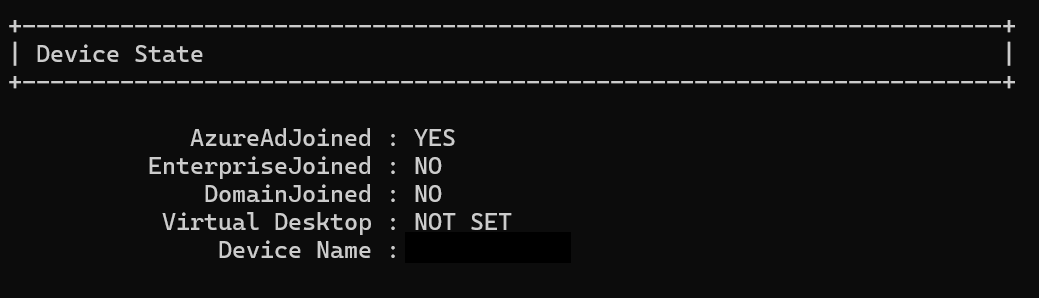
If AzureAdJoined is NO, the device is not Microsoft Entra joined or hybrid joined, the two situations in which Windows gets a PRT at sign-in. Look at the join first. In the Device Details section, also check DeviceAuthStatus: SUCCESS means the device exists in Entra ID and is enabled.
Find the SSO State section and read these fields:
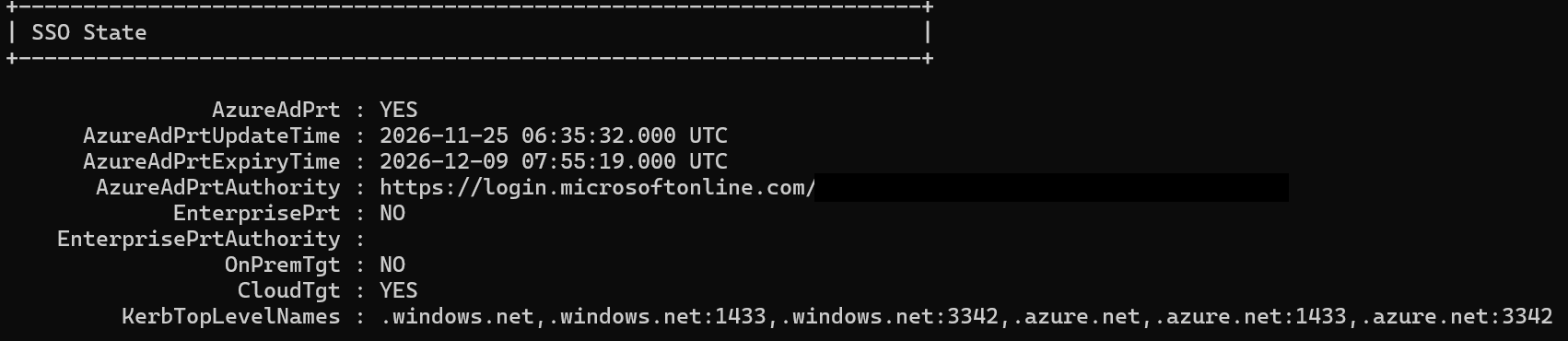
If the PRT is old, lock the device and unlock it again. That forces a renewal. On a hybrid joined device, wait at least 60 seconds after locking so the PRT acquisition task can finish, then unlock it. Then run dsregcmd /status again and check whether AzureAdPrtUpdateTime has changed.
If acquiring or renewing the PRT failed after the last successful update, dsregcmd shows the fields AcquirePrtDiagnostics or RefreshPrtDiagnostics with the value PRESENT under AzureAdPrt. Below them you find, among others:
On a shared device this information can come from another user’s sign-in. So check User Identity.
If those fields are missing, no failed attempt has been recorded since the last successful update. On a Windows version older than 21H1, or to investigate an earlier attempt, use Event Viewer:
The PRT troubleshooting page describes the cause and solution per code. A few that Microsoft names:
Once the PRT is acquired and renewed again, apps that use WAM can sign the user in silently again, unless a policy such as sign-in frequency or MFA asks for a new sign-in.
For sign-in problems on an Entra joined PC, start with dsregcmd /status in the user’s context: check whether the device is joined, whether AzureAdPrt is YES and how old AzureAdPrtUpdateTime is, and use the diagnostic fields or Event Viewer to find the error code. Want users to see the basics for themselves? Endpoint Toolbelt shows the join type and whether the work account has a sign-in token (PRT), and lets the user ask Windows to renew that token without administrator rights.