Employees want to read their mail, chats and files on their own iPhone or iPad as well. You do not want to take that device under full management, but you do want to protect the corporate data in Outlook, Teams and OneDrive. That is the typical Bring Your Own Device (BYOD) scenario.
In this blog post you read how to create an App Protection Policy for iOS/iPadOS with Mobile Application Management (MAM) in Microsoft Intune, which settings to choose in it and what the user notices.
What is Mobile Application Management?
With Mobile Application Management (MAM) you protect corporate data inside apps, instead of managing the whole device. You set the rules with an App Protection Policy. Such a policy targets the user’s identity and applies only when the app is used with a work or school account. Personal use of the same app stays outside it. To enforce that users reach corporate data only through protected apps, you combine the policy with Conditional Access.
This way you can, for example, require a PIN for corporate data, prevent that data from being copied to personal apps, and remove only the corporate data from an app, without removing the app itself.
MAM without and with device enrollment
An App Protection Policy works on devices that are enrolled in Intune and on devices that are not:
Scenario
Description
MAM without device enrollment
The device is personal and not enrolled. Only the corporate data in protected apps falls under the policy. The user installs the apps from the App Store themselves.
MAM with device enrollment
The device is enrolled in Intune (MDM). MDM protects the device, for example with a passcode and compliance, and the App Protection Policy protects the data in the apps. On iOS this requires app configuration, see below.
You can use both side by side. With filters in the assignment you give unmanaged devices a stricter policy than enrolled devices. On iOS, Intune sees a device as managed only when the app receives the values IntuneMAMUPN and IntuneMAMOID through app configuration. Intune sends those automatically to Excel, Outlook, PowerPoint, Teams and Word on enrolled devices; Microsoft is still expanding that list. For apps that are not (yet) on it, at the time of writing for example OneDrive, you set the values yourself with an app configuration policy. Without those values the policy sees the device as unmanaged, and the policy may even fail to reach the app or reach it incorrectly.
What do you need?
Users with an account in Microsoft Entra ID.
A Microsoft Intune license, assigned to those users.
A security group with the users the policy applies to.
An iPhone or iPad with an app that supports App Protection, such as Outlook, Teams or OneDrive. For Outlook the user also needs an Exchange Online mailbox and license (or Exchange Server with hybrid modern authentication).
An admin role in Intune with the Managed apps permissions, such as the built-in Application Manager role.
Create an App Protection Policy in Intune
Open the Microsoft Intune admin center.
Navigate to Apps > Protection.
Click Create policy and choose iOS/iPadOS.
On the Basics page, enter a clear name, for example “MAM – Microsoft 365 Apps – iOS”.
Click Next to go to the Apps page.
Select the apps
On the Apps page, choose under Target policy to which apps fall under the policy:
All Apps: all apps from Microsoft and partners that have the Intune SDK built in.
Microsoft Apps: all Microsoft apps with the Intune SDK.
Core Microsoft Apps: Microsoft Edge, Excel, Office, OneDrive, OneNote, Outlook, PowerPoint, SharePoint, Teams, To Do and Word.
Selected apps: you choose the apps yourself.
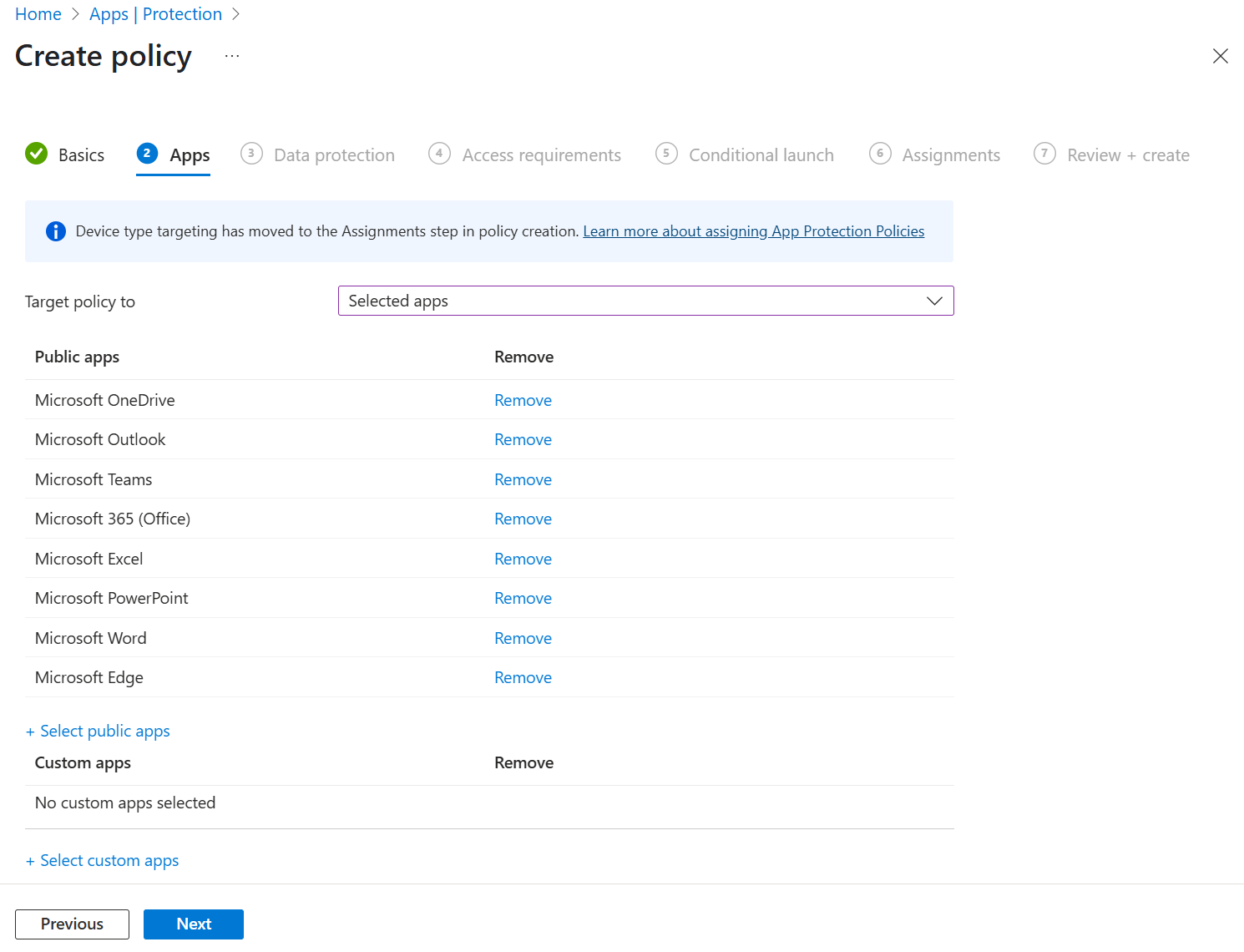
With Selected apps you decide exactly which apps take part:
Under Target policy to, choose Selected apps.
Click Select public apps and add the apps, for example Microsoft Outlook, Microsoft Teams and Microsoft OneDrive.
Click Next to go to Data protection.
Set up data protection
On the Data protection page you decide what users may do with corporate data in the app. Important settings:
Backup Org data to iTunes and iCloud backups: set this to Block, so that corporate data does not end up in an iTunes or iCloud backup.
Send Org data to other apps: choose Policy managed apps, so that corporate data goes only to other protected apps. On a device that is not enrolled, or an enrolled device that allows sharing with unmanaged apps, a user can still send content to an unmanaged app through Open-in or a share extension, but Intune then encrypts it, so that app cannot read it.
Restrict cut, copy and paste between other apps: choose Policy managed apps, so that cut, copy and paste work only between protected apps.
Encrypt Org data: leave this at Require. Intune then enforces the iOS/iPadOS encryption, which protects the corporate data while the device is locked; apps can also encrypt on their own. If the device has no passcode, the app can ask the user to set one.
Restrict web content transfer with other apps: choose Microsoft Edge, so that links from the protected apps open only in Edge. If Edge is not on the device, the user is asked to install it.
Click Next to go to Access requirements.
Set up the access requirements
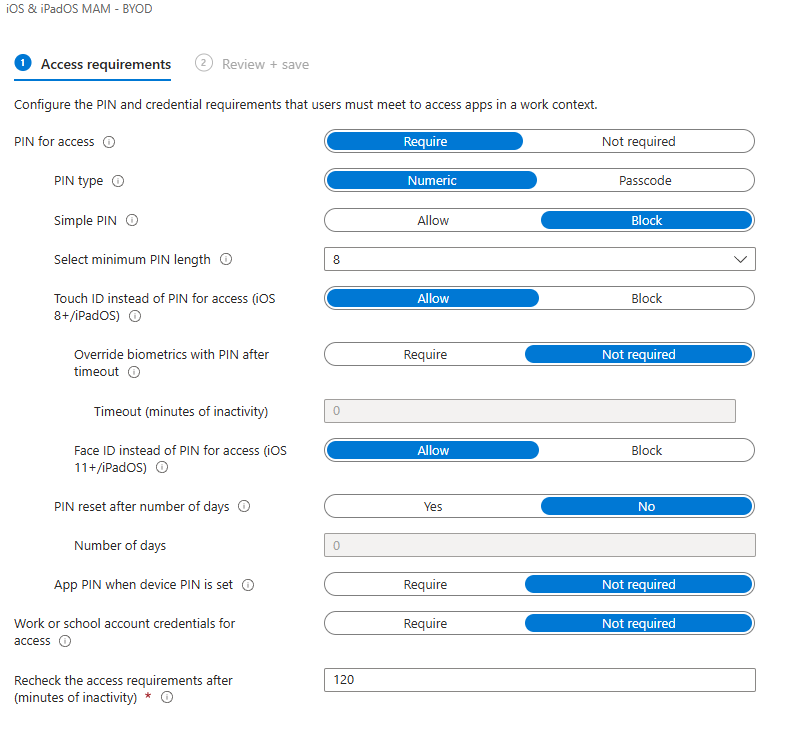
On the Access requirements page you decide how the user proves who they are:
PIN for access: set this to Require. The user sets an app PIN as soon as they use the app with their work account for the first time.
Touch ID instead of PIN for access and Face ID instead of PIN for access: set these to Allow to allow biometrics instead of the PIN. Note: with Allow for Face ID, the app on a device with Face ID uses facial recognition instead of the PIN. After the timeout of the next setting, the app asks for the PIN anyway. If a finger or face is added to or removed from the device, the app asks for the PIN at the next inactivity timeout, in apps that support it.
Override biometrics with PIN after timeout (on Microsoft Learn Override Touch ID with PIN after timeout): with Require and a timeout, the app asks for the PIN again instead of biometrics after that period of inactivity. The default is Require with a timeout of 30 minutes. With Not required this extra PIN check is dropped; the user then generally proves who they are with Touch ID or Face ID. After a change in the biometrics, the app still asks for the PIN. If you use Require, Microsoft advises setting this timeout higher than the value of Recheck the access requirements after.
Recheck the access requirements after (minutes of inactivity): after how many minutes of inactivity the user has to prove who they are again. The default value is 30.
💡 These settings are a trade-off between security and ease of use. The more often the app asks for the PIN, the safer, but also the more often the user is interrupted. Biometrics without an extra PIN after a timeout is often the most pleasant for the user; choose Require if your organization wants that extra check. The screenshot below is an example, not a recommended configuration.
Click Next to go to Conditional launch.
Set conditions for launching the app
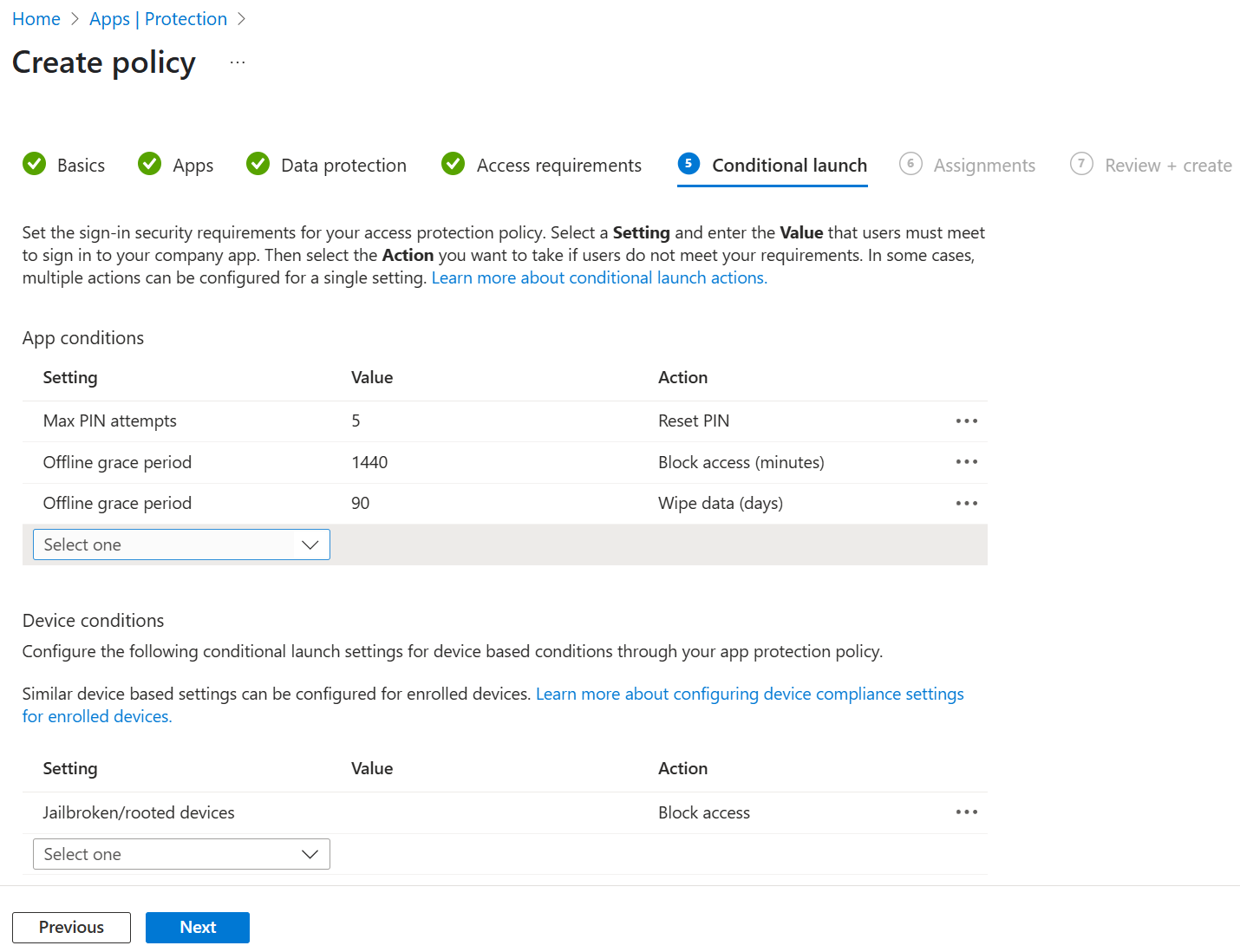
With Conditional launch you set requirements for the user and the device, each with an action when it is not met.
App conditions
Max PIN attempts: the number of attempts for the PIN, 5 by default. After that comes the action Reset PIN or Wipe data.
Offline grace period: how long an app may work without a connection to Intune. The setting has two actions: Block access (minutes), by default after 1440 minutes (24 hours), and Wipe data (days), by default after 90 days.
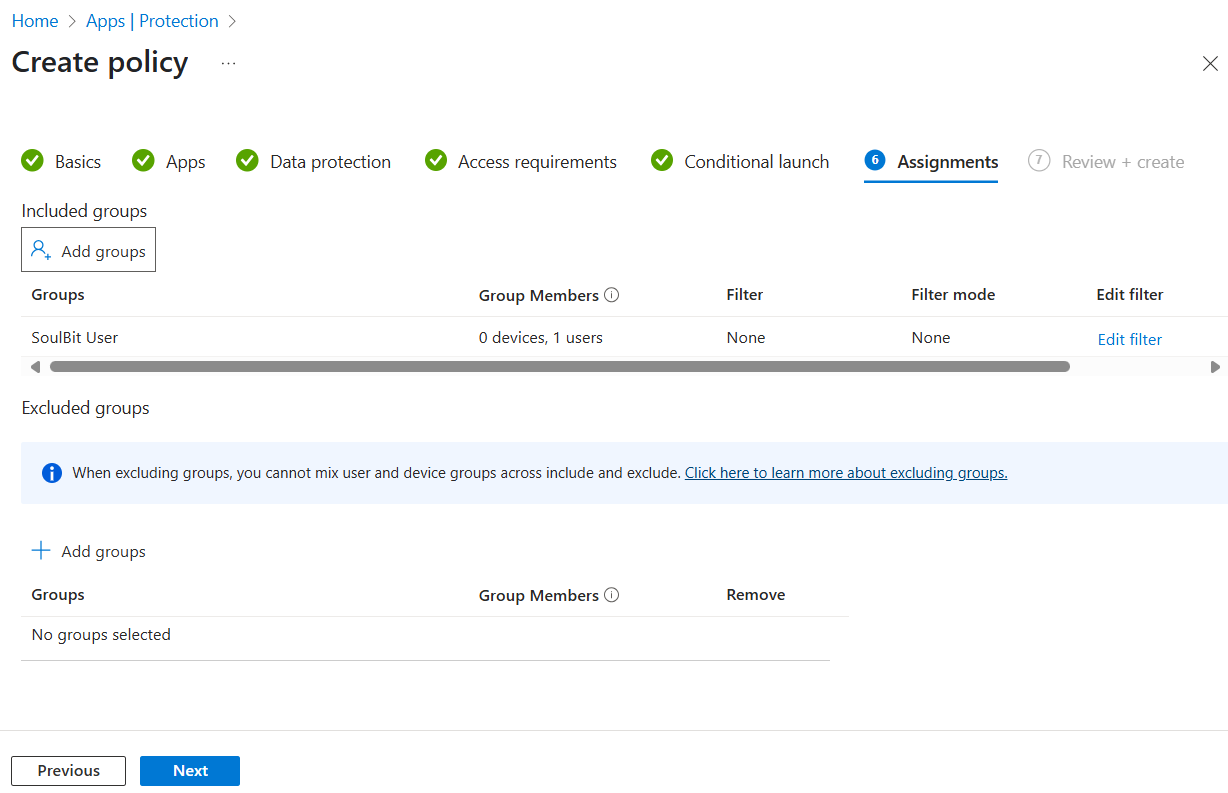
An App Protection Policy only works once it is assigned to a group of users.
On the Assignments page, select the groups you want to include: the security group with the users the policy applies to.
If you want to distinguish between enrolled and non-enrolled devices, set up a filter with Edit filter.
Click Next to go to Review + create, check the settings and click Create.
💡 It can take a while before the policy is active on existing devices. Microsoft recommends deploying the policy first and only then adding Conditional Access rules that require protected apps.
User experience
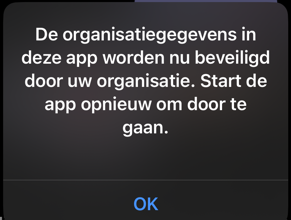
As soon as the policy becomes active on the device, the user gets a notification. The screenshots below are one example on iOS: there the app reports that the organization now protects the corporate data and asks to restart the app.
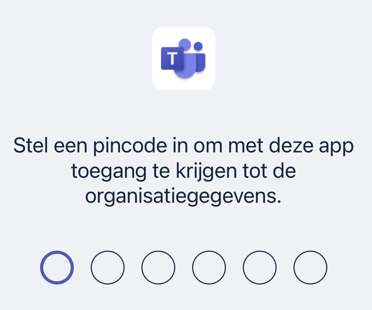
On first use with the work account, the app asks the user to set a PIN, and to use biometrics if that is allowed. On iOS, apps from the same publisher share one PIN, so Microsoft apps generally use the same PIN.
If cut, copy and paste are restricted to protected apps, the user cannot paste corporate data into an unmanaged app. In the example below, the unmanaged app shows a message instead of the text.
An App Protection Policy in Intune protects corporate data in the apps it applies to, such as Outlook, Teams and OneDrive, on personal iPhones and iPads, without you managing the device itself. To enforce that users reach the data only through those apps, you combine it with Conditional Access.
Onboard iPhones and iPads into Microsoft Defender for Endpoint with zero-touch through Intune, and use the risk level in compliance and app protection.