A new laptop comes out of the box and goes through Windows Autopilot. If it is missing the latest monthly security update, you want to know whether that update is installed during setup or only once the user is already at work.
In early September 2025 Microsoft announced a setting in the Intune Enrollment Status Page (ESP) that lets you control this. In this blog post you read what the setting Install Windows updates (might restart the device) does, which devices it works for and how to set it in a new or existing ESP profile.
What does the setting do?
The Enrollment Status Page shows the user how far setup has progressed during the out-of-box experience (OOBE), and can block the device until the required apps and profiles are installed. With the new setting you also decide whether the device checks Windows Update at the end of the OOBE for missing monthly security updates, and then installs them.
Yes: the device looks for the missing updates and installs them. If updates are found, the user sees a page with the progress.
No: the updates are not installed during the OOBE and the device simply continues to the desktop.
In the admin center the setting was called Install Windows updates (might restart the device) in October 2026; Microsoft Learn calls it Install Windows quality updates (might restart the device). In Intune, Microsoft calls these updates quality updates. This is the monthly security update released on the second Tuesday of the month, also known as the B release or Patch Tuesday. Other kinds of updates, such as the optional preview updates or the annual feature update, are not installed by this setting.
The order matters: first the ESP completes and applies your update rings, then the security updates are installed. A deferral or pause you set in an update ring is therefore respected.
Microsoft announced the setting in the week of 1 September 2025.
Updated in October 2026: the feature has been available since 13 January 2026. The enforcement in Windows is in the quality update 2026-01 B.
What do you need?
A subscription that supports Windows Autopilot, for example Microsoft 365 Business Premium, Microsoft 365 E3 or E5, or Microsoft Entra ID P1 or P2 together with Microsoft Intune.
An ESP profile assigned to devices. User-targeted ESP profiles are not supported for this setting.
Devices registered for Windows Autopilot. A device that is not registered in Autopilot only follows the setting if both the ESP profile and your update rings are assigned to All Devices.
On the ESP page, Microsoft does not name a specific admin role for this setting.
Where it does not work
Windows Autopilot device preparation does not use an ESP, so the setting does not apply there. There, no security updates are installed during the OOBE (yet); Microsoft has announced that this will happen later, without an option to turn it off.
With pre-provisioning, the updates are not installed in the Technician Flow, but they are in the User Flow.
On a network connection with a data limit (metered), the OOBE does not install the updates.
Navigate to Devices > Device onboarding > Enrollment.
On the Windows tab, under Windows Autopilot, select Enrollment Status Page.
Click Create and give the profile a name under Basics, for example “ESP – Windows 11 – Contoso”.
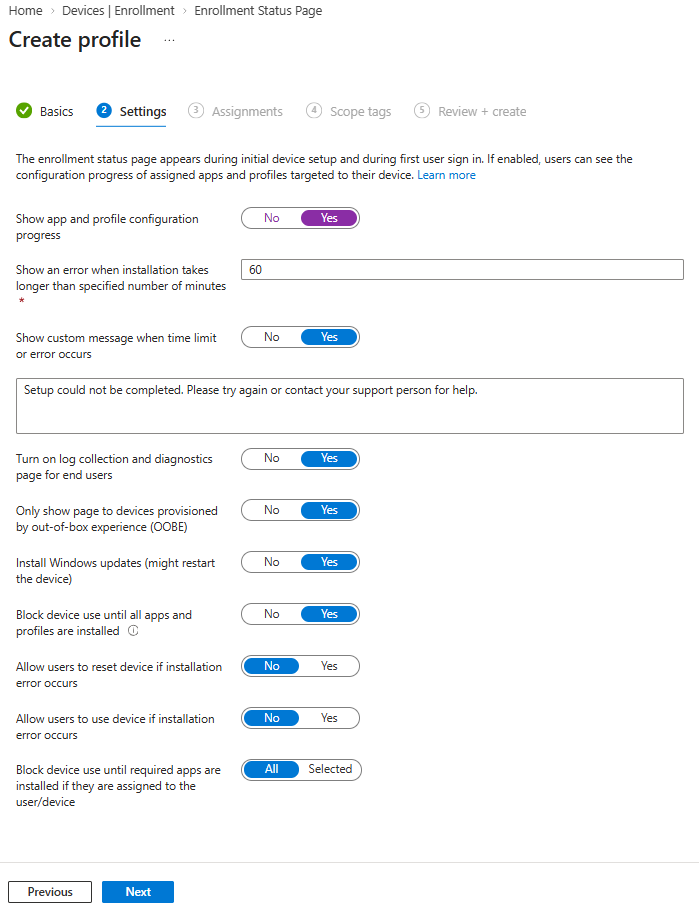
Under Settings, set Show app and profile configuration progress to Yes. Only then do the other settings appear.
Leave Install Windows updates (might restart the device) at Yes.
Set Block device use until all apps and profiles are installed to Yes. If it is No, the device can leave the ESP before the update policies and the security updates have been applied.
8. Under **Assignments**, choose the device groups that get the profile.
9. Under **Scope tags**, add scope tags if needed.
10. Under **Review + create**, check your settings and click **Create**.
The profile becomes active as soon as the devices check in again.
Change an existing ESP profile
In profiles that already existed, the setting is No. If you want updates during the OOBE there too, you have to change the profile yourself. The steps follow how Microsoft describes editing the default profile.
Navigate to Devices > Device onboarding > Enrollment and open the Enrollment Status Page on the Windows tab.
Select the profile and choose Properties.
Under Settings, click Edit.
Set Install Windows updates (might restart the device) to Yes.
Click Review + save and then Save.
If you have several ESP profiles, check which profile has the highest priority for your device groups. A device uses the device-targeted profile with the highest priority, and without any other profile that is the default profile.
💡 Note with Windows Autopatch: Autopatch groups cannot be assigned to All Devices. Microsoft describes two alternatives: update rings from Devices | Windows Updates with the assignment All Devices, or Autopatch groups with devices registered in Windows Autopilot.
When do you set the setting to No?
The setting at Yes is not always the best choice.
Extra time. Microsoft states that the installation adds 20 to 40 minutes to setup.
Restarts. The installation can restart the device. After such a restart the user is not signed in automatically, and that can disrupt scenarios with automatic sign-in (autologon). Microsoft recommends No in those cases.
Test first. With No, new devices do not get the latest security update during setup. That gives you time to test an update first.
For No too, Block device use until all apps and profiles are installed must be set to Yes. Microsoft advises against setting that option to No if Install Windows updates is set to No, and calls Yes the way to make sure the updates are then really not installed.
Expedited updates are not part of this. A device with an expedite policy starts that update sometime after the OOBE, if it is not in the monthly security update.
💡 Microsoft is not consistent about what Windows does without this setting. The What’s new article says that the OOBE installs the latest security updates by default, while the ESP page says they are not installed by default. What is certain: with Yes or No in a device-targeted ESP profile you decide it yourself, provided the ESP is turned on and Block device use until all apps and profiles are installed is set to Yes. If the ESP page is turned off, the updates are not installed.
User experience
If the setting is Yes and updates are needed, the user sees a page with the progress of the updates at the end of the OOBE. The device can restart in the process, after which the user has to sign in again. Then the user reaches the desktop, with the monthly security update that your update rings allow, as far as the conditions above are met.
With No, no update page appears and the device goes straight to the desktop.
With Install Windows updates you choose per ESP profile whether new Windows 11 devices get the monthly security update during setup. New profiles are set to Yes, existing ones to No. So go through your existing profiles, and set Block device use until all apps and profiles are installed to Yes: only then is your choice, Yes or No, applied reliably.
Supported Windows devices can trigger a compliance evaluation themselves when the firewall or BitLocker changes. What that means and where to see the status.