Do you still manage updates of iPhones, iPads and Macs with the update policies Intune offered for years? Those work with MDM commands that Apple removed with OS 27. In the week of 26 October 2026 (service release 2610), Microsoft announced that Intune is therefore removing these legacy workloads. Microsoft advises moving to update policies with declarative device management.
In this blog post you read what goes away, which declarative policy takes its place, how to set it up in the settings catalog, and how to see in the reports whether your devices actually update.
What changes?
According to What’s new in Microsoft Intune, Intune removes the legacy MDM workloads for Apple software updates, because Apple retired the underlying commands and payloads in OS 27. To keep managing software updates, you use update policies with Apple declarative device management (DDM).
The difference is in who does the work. With MDM, Intune sent update commands and kept asking for the status. With DDM, Intune tells the device which version it must have and by when; the device downloads, installs and reports its own progress. According to Apple, a device that misses a deadline picks up the process itself once it is connected again.
Software Update or Software Update Enforce Latest in the settings catalog
Software Update payload in the macOS settings catalog, settings in the Device restrictions template and the deferral settings under Restrictions in the settings catalog
Software Update Settings in the settings catalog
Reports on failed installations for iOS and macOS
Apple software update failures under Devices > Monitor
Software updates report per macOS device
macOS software updates per device
What do you need?
Devices with macOS 14.0 or later, or with iOS/iPadOS 18 or later. According to Microsoft the DDM update feature works from iOS/iPadOS 17.0, but since service release 2609 Intune requires iOS/iPadOS 18 or later for standard management.
Enrollment through Device Enrollment or Automated Device Enrollment.
For iOS/iPadOS: Microsoft writes its checklist for supervised devices; for personal devices there is a separate planning guide.
Check what you use now
Go through the policies in your tenant that still manage updates the old way: the update policies for iOS/iPadOS and macOS, settings catalog profiles with the old macOS Software Update payload or with the deferral settings under Restrictions, and profiles based on Device restrictions with update settings. According to the Intune team, a device ignores the MDM update settings once DDM update settings are enforced. The Intune team already wrote that in 2025, at Apple’s announcement; since service release 2610 Intune is removing these workloads. Microsoft’s macOS guide says not to use the MDM update settings any more. Microsoft does not describe whether old profiles disappear after the removal. On 25 November 2026 the Device restrictions template still offered the setting Defer software updates. If you find such settings in your profiles, clean them up once the DDM policy works.
Choose between latest version and target version
Intune has two DDM models:
Latest version: the device installs the latest eligible version after a delay in days. Microsoft calls this model suitable for organizations that want to patch quickly with little management.
Targeted version: you choose the version and an exact deadline. According to Microsoft this fits strict app compatibility requirements, phased deployment or formal change management.
Create a policy for the latest version
In the Intune admin center, create a settings catalog policy for iOS/iPadOS or macOS.
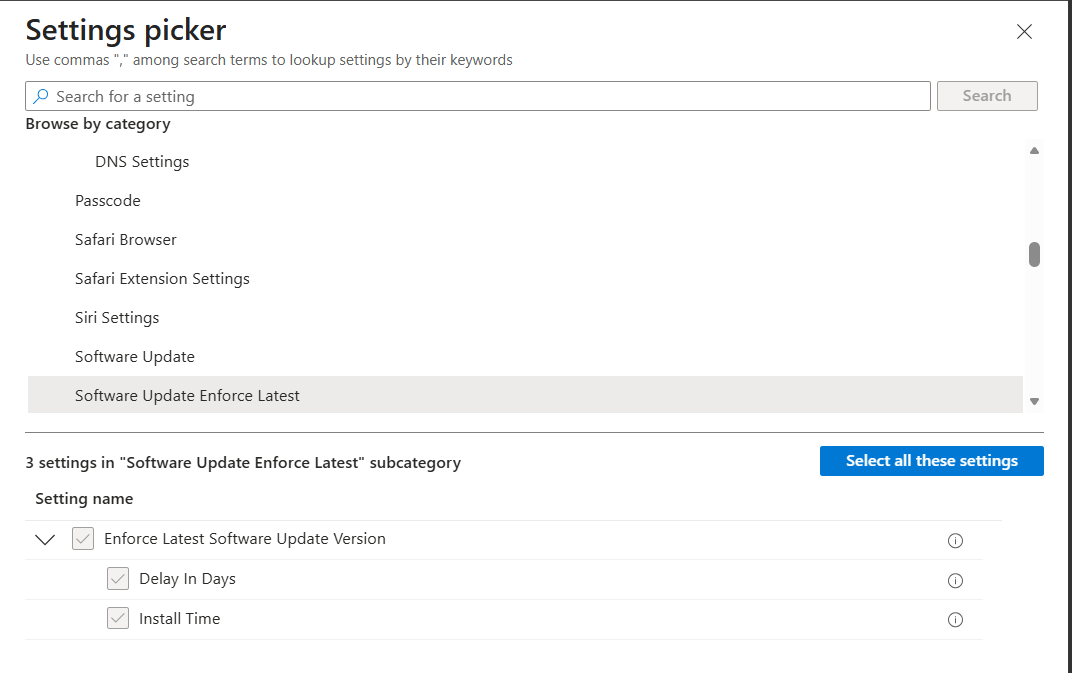
Choose Declarative Device Management > Software Update Enforce Latest. In the settings picker, select the three settings of this subcategory.
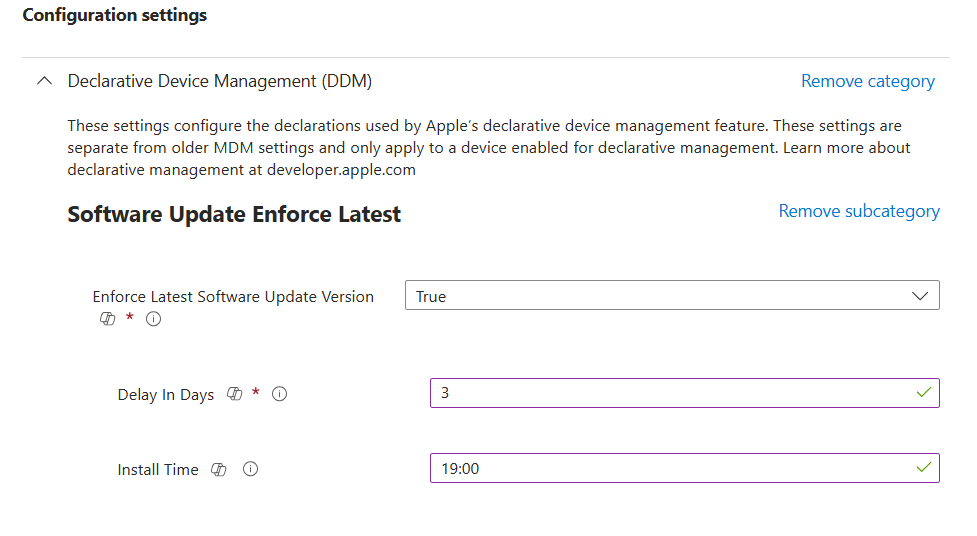
Set Enforce Latest Software Update Version to True.
Enter Delay In Days: the number of days before the deadline applies, counted from Apple’s release of the update or from when the policy is configured. This only sets the deadline, not when the user is offered the update.
Enter Install Time, in 24-hour format with a leading zero, such as 02:00.
The screenshot shows example values, not a recommendation: a delay of 3 days and 19:00 as the install time.
Software Update Enforce Latest: Enforce Latest Software Update Version set to True, Delay In Days to 3 and Install Time to 19:00.">
Assign the policy to a group.
Create a policy for a target version
Create a settings catalog policy for iOS/iPadOS or macOS.
Enter Target OS Version, for example 26.0, and optionally Target Build Version. If the two do not match, the OS version takes precedence.
Choose Target Date Time, the deadline in the device’s local time.
Optionally enter Details URL, a page with help for your users.
Assign the policy to a group.
💡 The deadline applies in the device’s local time. Microsoft therefore advises one policy for devices in different time zones when the same local time fits everywhere: a deadline of 02:00 applies at 02:00 local time everywhere.
Set the behavior before the deadline
With Software Update Settings in the settings catalog you decide what the user may do in the run-up to an update: automatic download and installation, hiding updates for a while, suppressing notifications until one hour before the deadline, and whether the user may move to the latest major or minor update. Microsoft advises using these settings together with the enforcement above. Microsoft adds: while an enforcement is assigned, the device ignores software update settings, including automatic update actions, and the update may install before the deadline if the device is idle. The page does not say exactly which settings stay in force. Also mind the conditions: according to Apple, Software Update Settings need iOS/iPadOS 18 or macOS 15 and a supervised device; only the enforcement and the beta offer work without supervision.
Read the reports
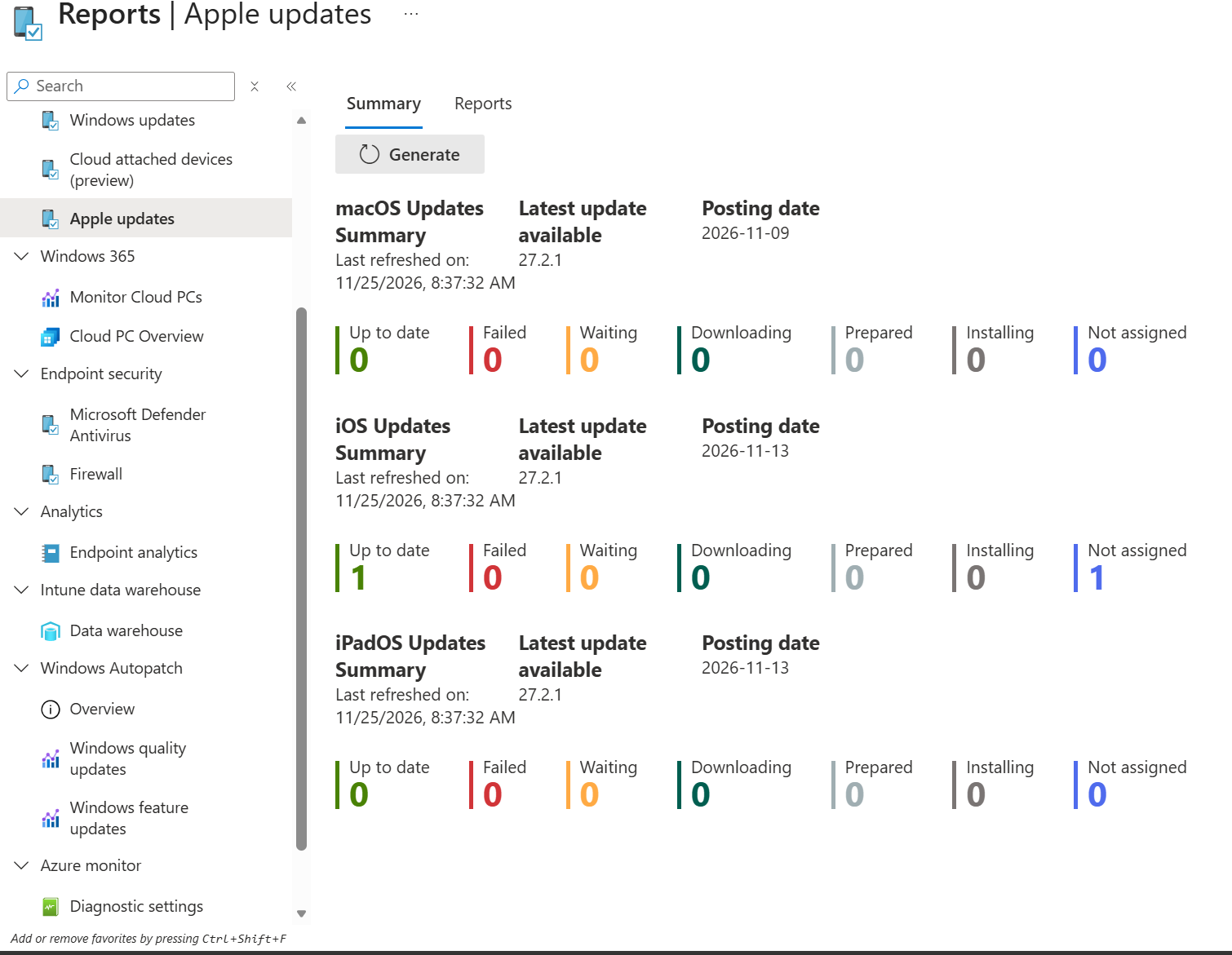
A policy that reports Success only means it is on the device, not that the device has already updated. So look at the reports for Apple updates:
Reports > Device management > Apple updates > Summary for the overview per platform: the latest available update, the date Apple released it and the number of devices per status.
Reports > Device management > Apple updates > Reports, tile Apple software update report, for the status per device. Click Generate to populate the report.
Devices > Monitor > Apple software update failures for failed updates with reason and time.
Per device: open the device under Devices, expand Monitor on the Overview page and choose iOS software updates or macOS software updates.
If a device has already updated to a newer version than your policy names, that policy reports an error: the device sees it as an attempt to downgrade. Microsoft recommends removing the older policy from those devices.
User experience
As soon as the policy arrives, the device downloads and prepares the update (an iPhone or iPad on cellular data only asks for confirmation first) and the user sees the deadline in Settings or System Settings and in a notification. As the deadline approaches, the notifications come more often. For a policy with Target Date Time, Microsoft describes what happens at the deadline: if the user has not started the update, a one-minute countdown follows, after which the device installs the update and restarts. If the device was off, a grace period of one hour applies after it is turned on. Apple adds that iOS and iPadOS force the user to enter their passcode if one is set, and that macOS quits all open apps, even when unsaved documents are open.
Wrapping up
Move your Apple update policies to DDM in the settings catalog: choose latest version or target version per group of devices, set the behavior before it with Software Update Settings, and follow in the Apple update reports whether the devices actually update.
Dutch sites spread code through their ads that attacked iPhones. Whoever had updated was expected to run no risk of a takeover. This is how Intune helps.